
There are several potential reasons why FreeCAD may crash on startup and that is very frustrating. One common issue is related to outdated graphics drivers on the user’s system, as FreeCAD utilizes OpenGL for rendering which can be incompatible with older or unsupported graphics hardware. Another factor could be insufficient system resources, such as RAM or processing power, which can lead to instability when running resource-intensive applications like FreeCAD.

Additionally, conflicts with other software or plugins installed on the system can also trigger crashes upon launching FreeCAD. It is recommended to ensure that both the operating system and all relevant drivers are up-to-date, disable any unnecessary background processes, and troubleshoot conflicts with other software in order to address and potentially resolve issues causing FreeCAD crashes on startup.
Possible Causes:
- Corrupted configuration files.
- Incompatible or buggy workbenches.
- Graphics driver issues.
Solutions:
- Reset FreeCAD Configuration:
- Close FreeCAD.
- Navigate to FreeCAD’s configuration folder:
- Windows:
C:\Users\<YourUsername>\AppData\Roaming\FreeCAD\ - Linux:
/home/<YourUsername>/.FreeCAD/ - macOS:
/Users/<YourUsername>/Library/Preferences/FreeCAD/
- Windows:
- Rename the
user.cfgandsystem.cfgfiles (e.g., touser.cfg.bakandsystem.cfg.bak). - Restart FreeCAD. This will generate new configuration files.
- Disable Problematic Workbenches:
- Open FreeCAD in safe mode (if available) or reset the configuration as above.
- Go to Edit > Preferences > Workbenches and disable any recently added workbenches the is not required for now.
- Update Graphics Drivers:
- Ensure your graphics drivers are up to date, especially if you’re using OpenGL for rendering.
“Thank you for reading! If you found this article insightful and valuable, consider sharing it with your friends and followers on social media. Your share can help others discover this content too. Let’s spread knowledge together. Your support is greatly appreciated!”


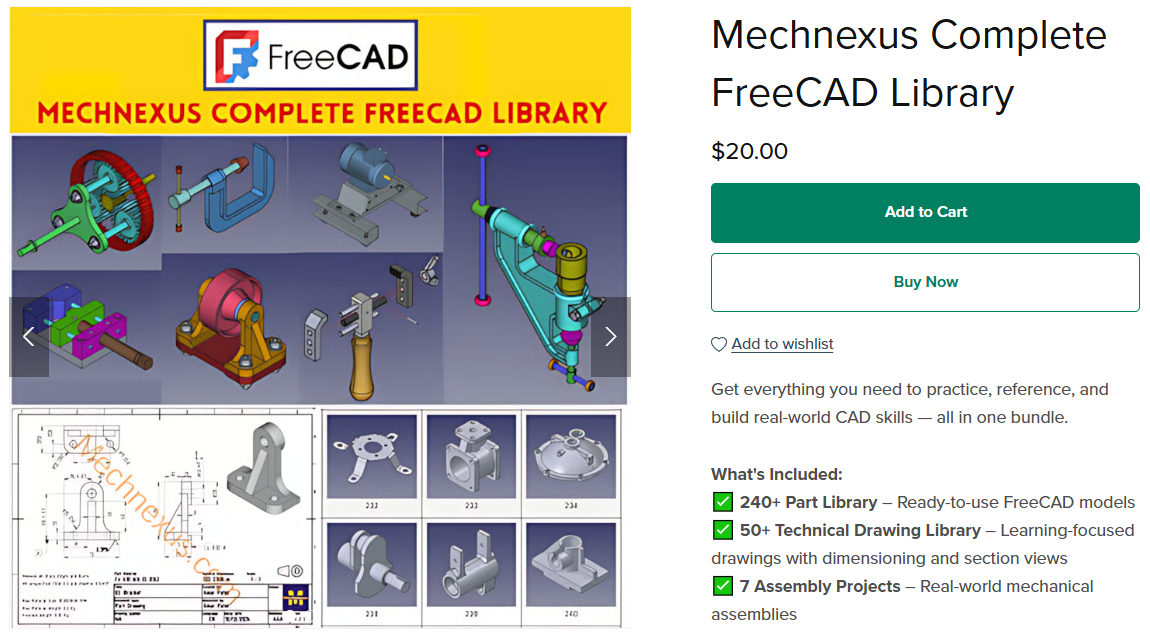
 My FreeCAD Projects, Models & Drawings now on Payhip