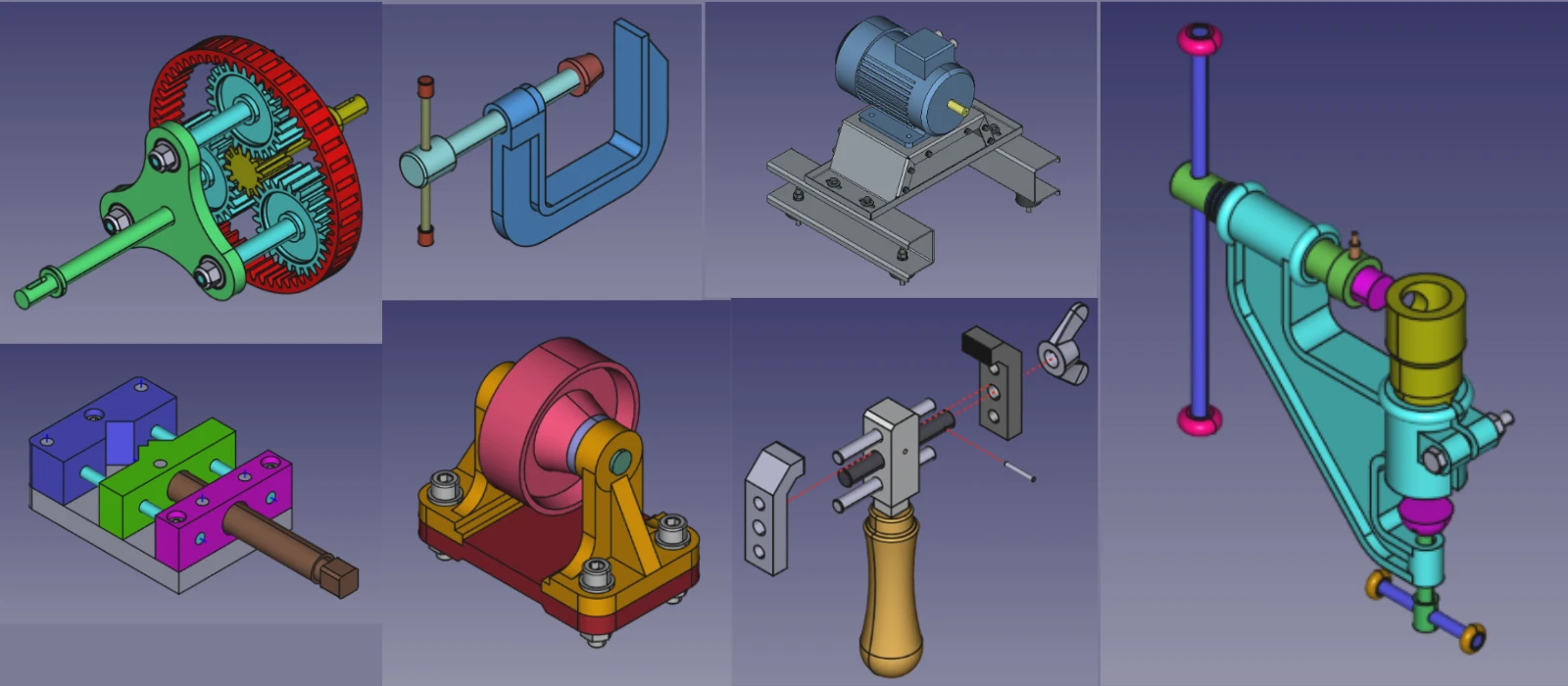
Editing a part in FreeCAD 1.1’s Assembly workbench is slower than expected. This isn’t necessarily due to an error, but rather stems from the inherent complexity of the assembly solver and recomputation system, both of which are still being refined.
Here’s an explanation of the main causes and some practical workarounds to help improve performance.


⚙️ Understanding the Core Issues:
The sluggishness you’re experiencing is typically caused by two main factors:
-
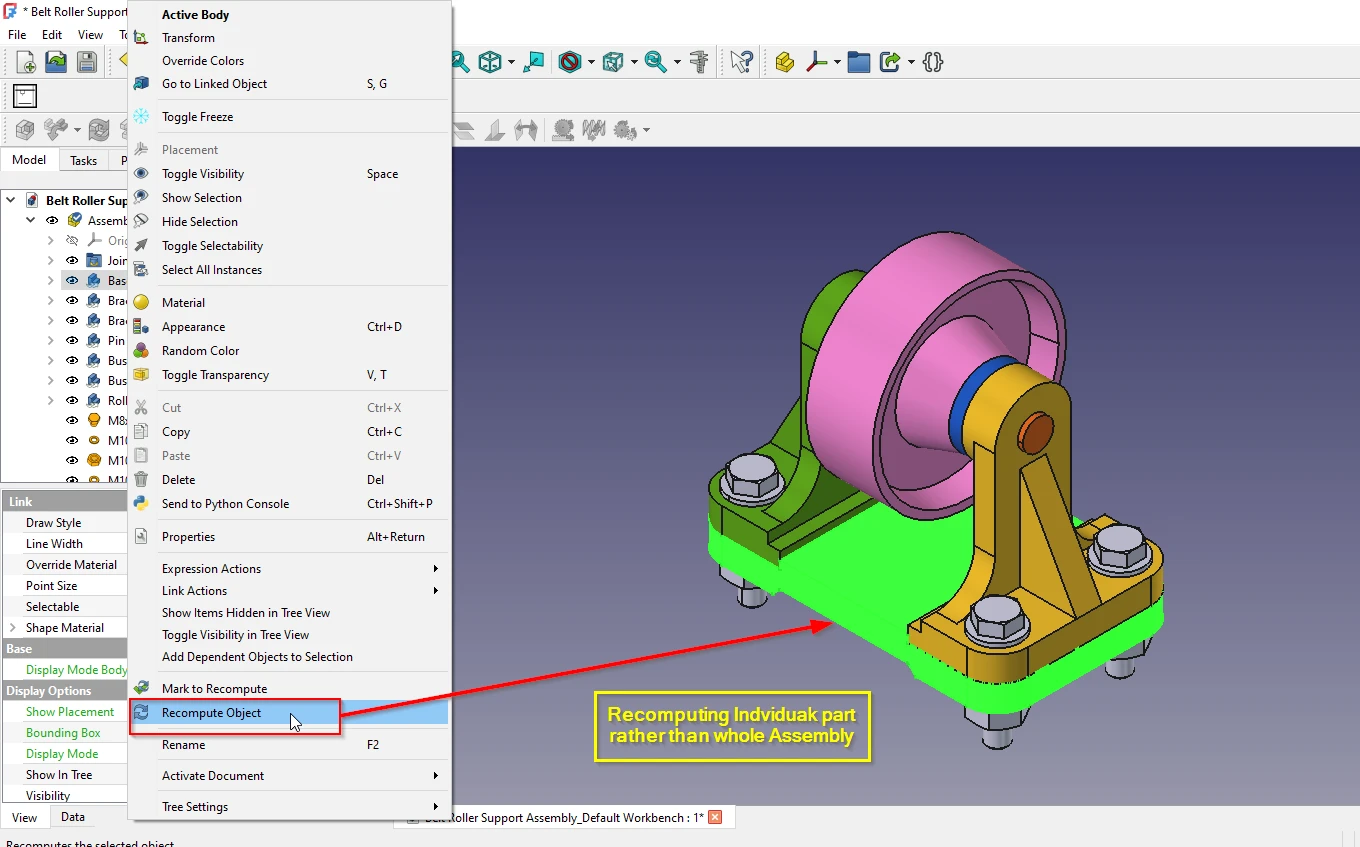
Recomputation Overhead: The biggest performance bottleneck is the
recompute()function. It processes almost the entire model’s feature tree, including constraints and attachment elements, with every single change you make.
-
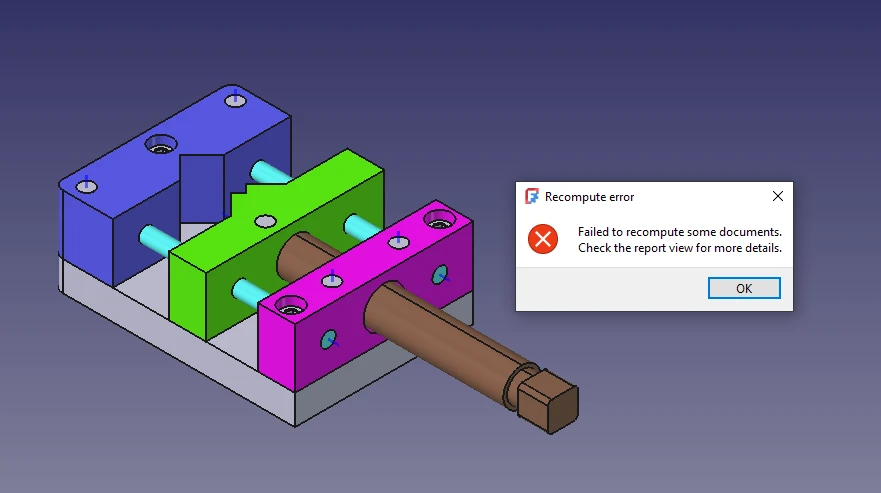
Solver Performance: The assembly solver that positions parts based on constraints can max out a CPU core and freeze the application for extended periods, even in simple assemblies. As the assembly grows, this solver time often increases exponentially–.
🛠️ Actionable Solutions and Workarounds:
Here are the most effective strategies to manage and improve performance:
-
Use Simple Copies for Complex Parts: This is the most effective step. For a part that is a complex, finalized sub-assembly, you can create a simplified “simple copy.” Right-click on the part or sub-assembly in the tree view and go to
Part > Create simple copy–. This new part is much lighter and no longer needs to be recomputed, which can dramatically speed up your main assembly. -
Freeze Sub-Assemblies: If you’re using the Assembly3 workbench, you can “freeze” a sub-assembly. Right-click on it in the tree view and select the freeze option. This prevents FreeCAD from looking inside that sub-assembly, saving significant CPU resources.
-
Master Manual Recomputation: Avoid recomputing after every minor change. Use the
Edit > Refreshcommand or the recompute button (the blue arrow) strategically to control when the heavy processing happens.
-
Manage and Optimize Constraints:
-
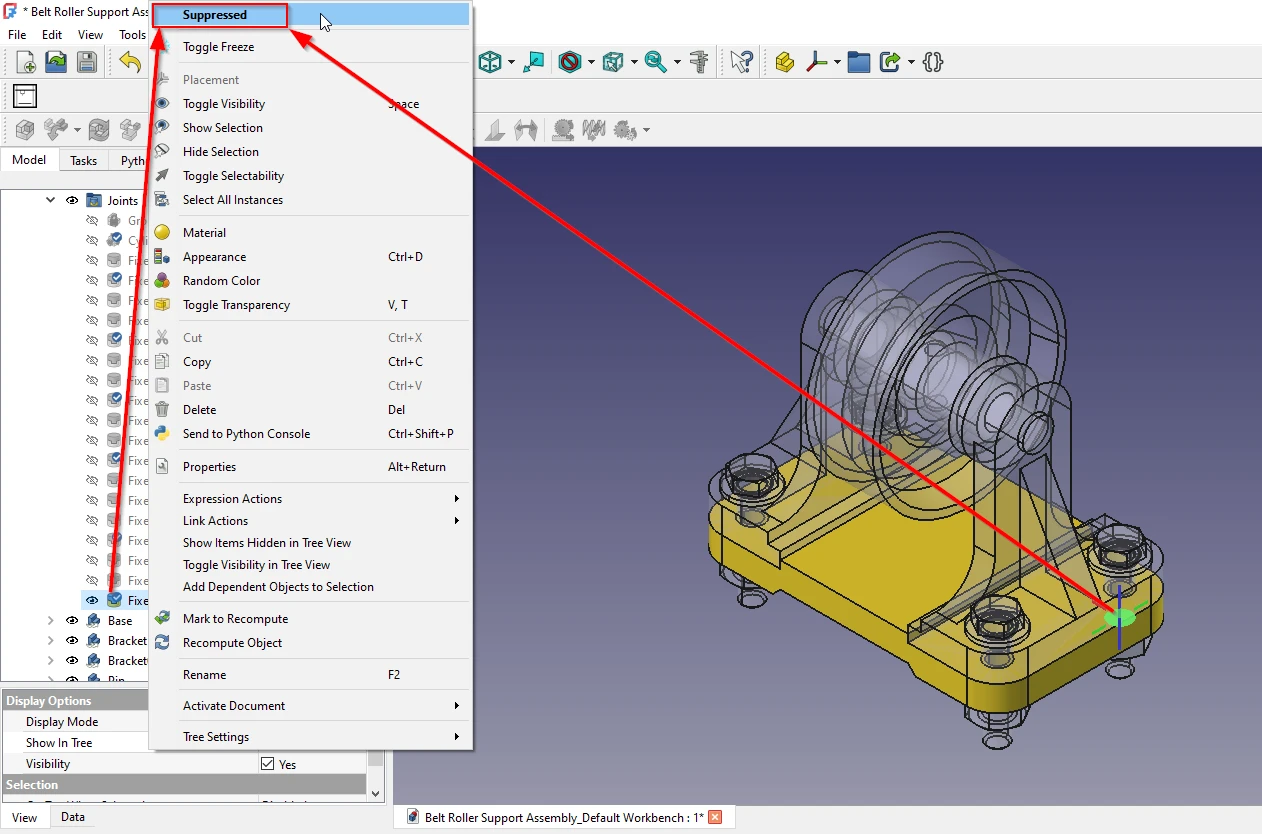
Disable Unnecessary Constraints: Temporarily disable any constraints that aren’t critical to your current work.
-
-
-
Keep It Simple: Using an “Attachment” constraint, which fixes all degrees of freedom at once if you are using Assembly3 Workbench, can be more efficient than combining several simpler constraints–.
-
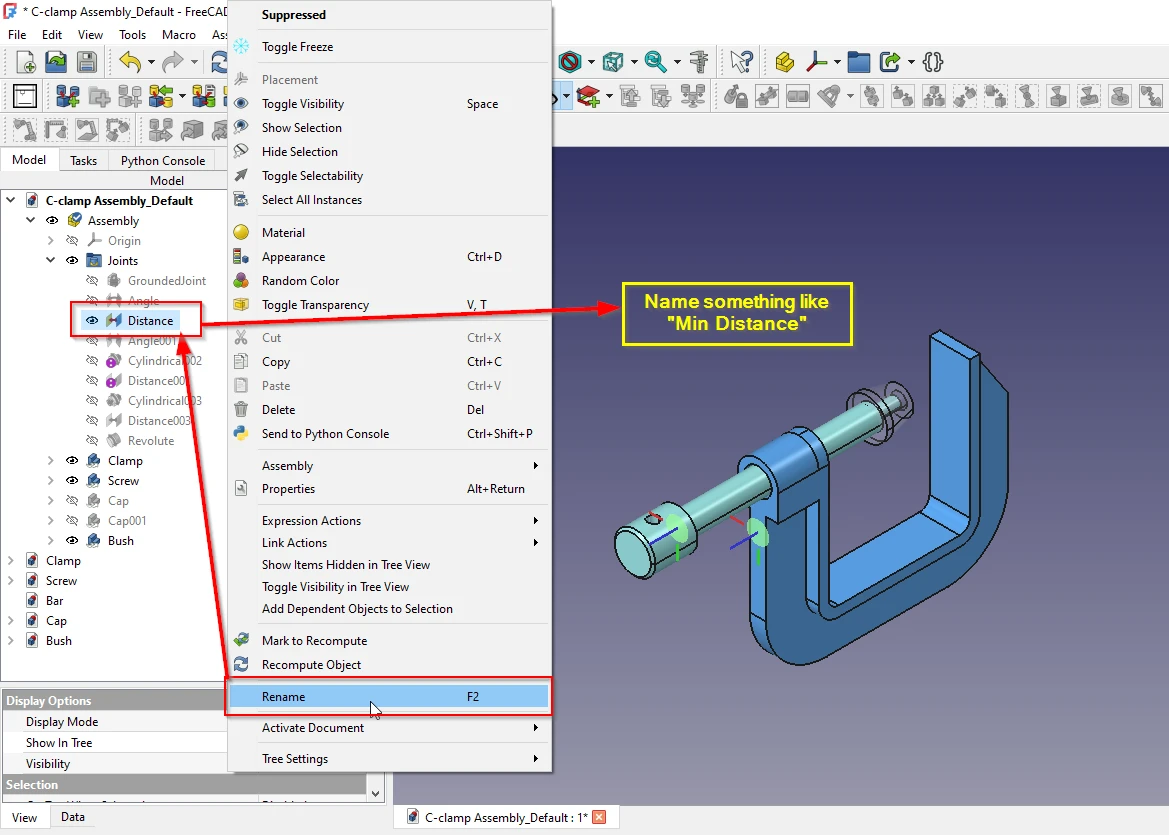
Name Your Constraints: Organize your model by naming constraints and elements clearly (using
F2in the tree). This helps you manage them better and can aid in diagnosing problematic ones.
-
-
Tune Your Display Settings:
-
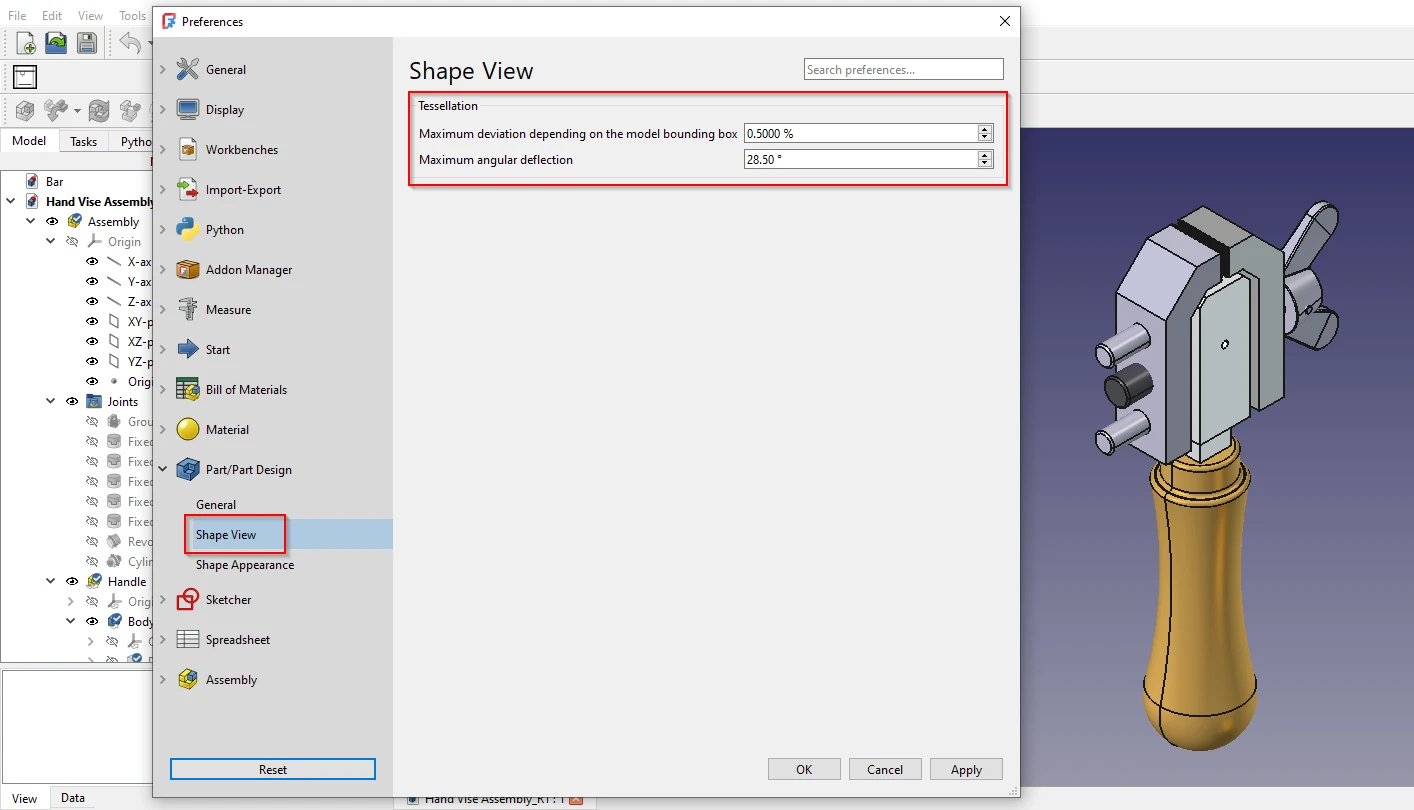
Reduce Mesh Detail: The complexity of a part’s mesh directly impacts performance. For highly detailed parts (like a threaded bolt), you can lower the “angular deflection” and “deviation” properties in the part’s View tab.
-
-
-
Enable Experimental Render Cache: Go to
Edit > Preferences > Displayand find the Render Cache option. Set it to Experimental. This bypasses the standard renderer and can be much faster for complex assemblies.
-
-
Consider an Alternative Workbench: If you’re struggling with persistent slowdowns, consider Assembly4. Instead of a traditional constraint solver, it uses local coordinate systems and mathematical expressions to position parts, which is inherently more stable and faster for many projects–.
📚 Current Development Status:
The integrated Assembly Workbench is still a work in progress. The FreeCAD team is actively tracking performance issues and is aware that the solver is being invoked too frequently. Future optimizations, such as multi-threading, are also being considered. If you want to stay updated, you can follow these issues on the FreeCAD GitHub repository.
If you can share details about your system (like your OS and FreeCAD version), I might be able to offer more specific advice.
“Thank you for reading! If you found this article insightful and valuable, consider sharing it with your friends and followers on social media. Your share can help others discover this content too. Let’s spread knowledge together. Your support is greatly appreciated!”

 My FreeCAD Projects, Models & Drawings now on Payhip