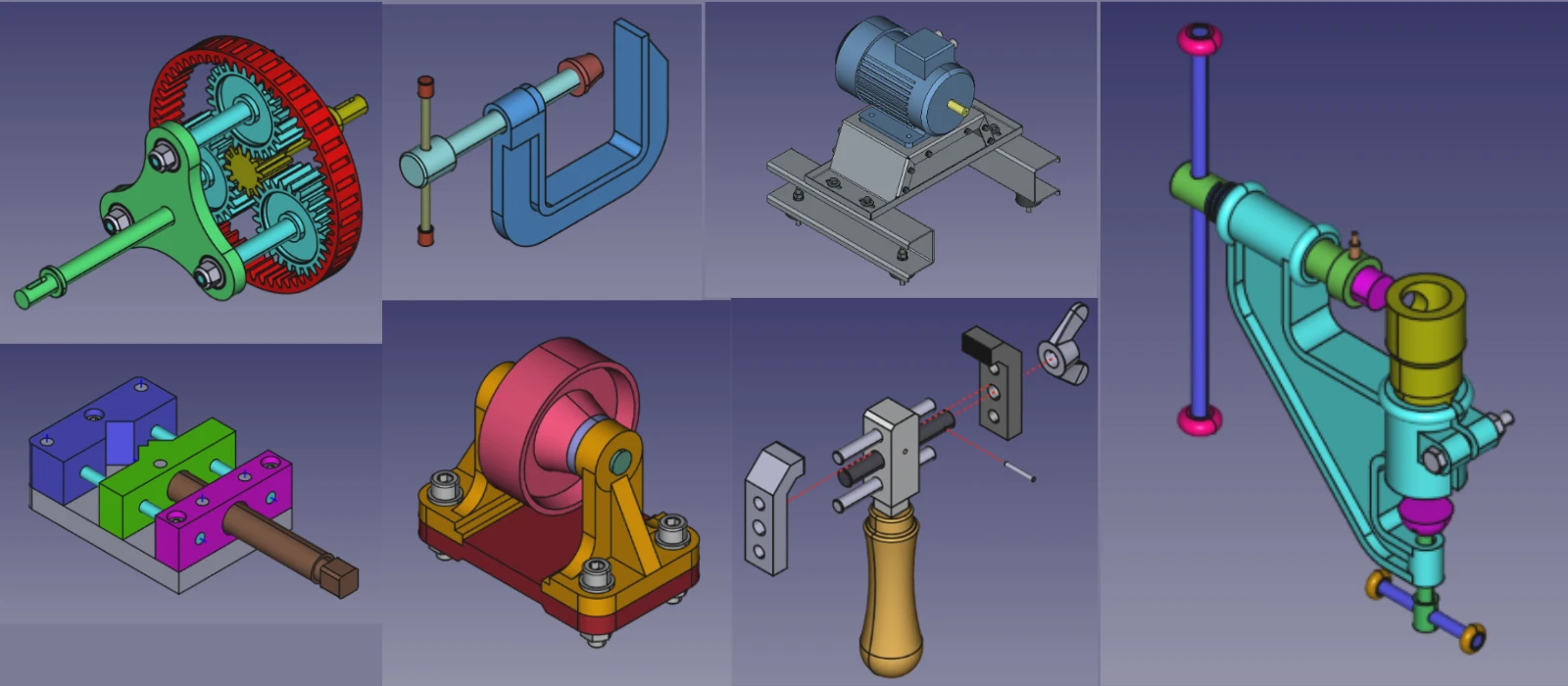


To prevent FreeCAD crashes, it is important to follow several general tips. Firstly, make sure your software is up to date by regularly checking for updates and installing them promptly. This will help to address any known bugs or issues that may be causing crashes. Additionally, it is essential to use stable versions of the software rather than experimental builds, as these are more likely to be prone to crashes.
Another tip is to avoid overloading the software with complex or resource-heavy tasks; break large projects down into smaller, more manageable parts to reduce the strain on the program. Lastly, always save your work frequently to avoid losing progress in the event of a crash. By following these guidelines, you can minimize the risk of experiencing crashes while using FreeCAD and ensure a smoother workflow overall.
- Save Frequently:
- Save your work often to avoid losing progress in case of a crash.
- Use Stable Versions:
- Stick to stable releases rather than development versions unless you’re testing new features.
- Monitor System Resources:
- Use Task Manager (Windows) or System Monitor (Linux) to check if FreeCAD is running out of memory or CPU.
- Enable Auto-Save:
- Go to Edit > Preferences > General > Document and enable auto-save with a reasonable interval (e.g., 10 minutes).
“Thank you for reading! If you found this article insightful and valuable, consider sharing it with your friends and followers on social media. Your share can help others discover this content too. Let’s spread knowledge together. Your support is greatly appreciated!”

 My FreeCAD Projects, Models & Drawings now on Payhip