
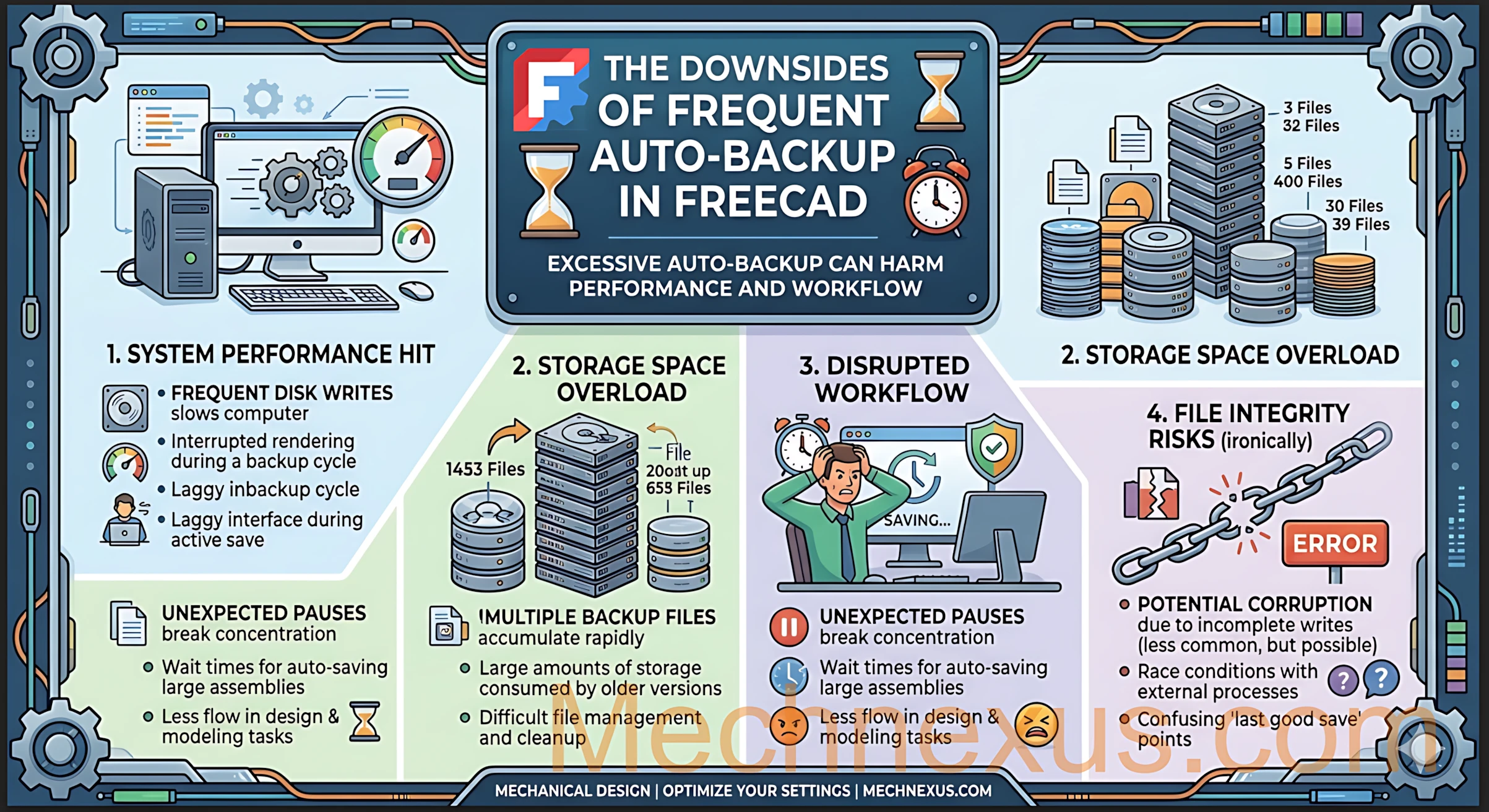
While it’s a valuable safety net against data loss from crashes or mistakes, setting the auto-backup interval too low in FreeCAD can introduce its own set of performance and organizational challenges.
⚡ 1. Performance Bottlenecks-:
The most noticeable downside of frequent auto-backups is a direct impact on performance.
- File System Lag: If you’re working with large, complex models, saving can be a write-intensive process. Setting a very short auto-back up interval can lead to constant input/output operations on your drive, especially if you’re saving to a network drive or a slower USB stick. This can cause the software to hang or become unresponsive while it writes the data.
- Slower Saving Process: There is a known issue in FreeCAD where the save dialog itself can become extremely slow, regardless of the file size-. A frequent backup schedule would mean you encounter this frustrating slowdown much more often.
🗂️ 2. Directory Clutter and Management-:
FreeCAD’s default method of managing backup files can quickly become overwhelming with frequent backups.
- “Directory Bloat”: By default, FreeCAD saves backups as
.FCStd1,.FCStd2, etc., right alongside your original file. If you set a high number of backups to keep (like 10 or 20), your project folder becomes incredibly cluttered and difficult to navigate-. - Lack of Organization: As of now, there is no built-in way to automatically store all these backups in a dedicated central folder, forcing you to manually manage the mess or live with it
🗑️ 3. Storage Waste-:
While an individual FreeCAD file might be small, the storage usage adds up over time.
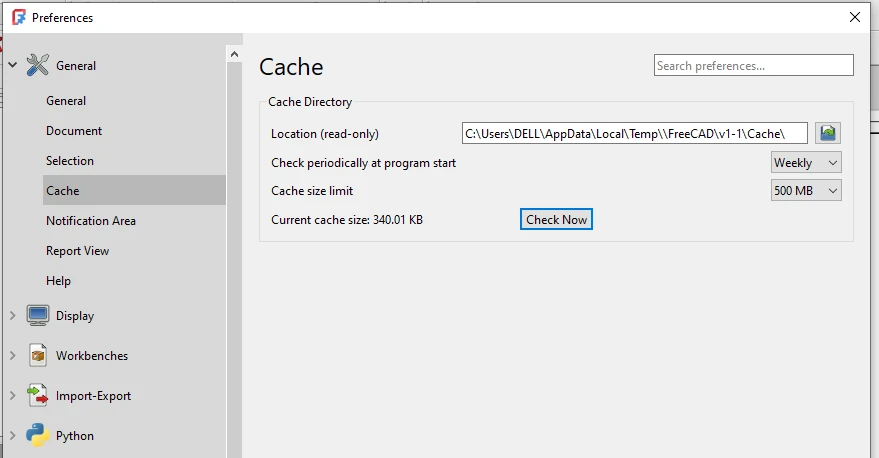
- Rapid Accumulation: A large, complex project file can easily be over 50 MB-. If you are keeping 10 backup copies and saving every 5 minutes, that’s over 500 MB of storage consumed every hour for a single project.
- Hidden Cost: This bloat often goes unnoticed until you run out of disk space or are trying to archive old projects.
💾 4. The “False Sense of Security” & Usability Issues-:
Frequent backups aren’t always as reliable as you’d hope, and they can create confusion when you need them most.
- Unreliable Feature: There is a known bug where FreeCAD’s auto-backup feature may not work at all unless you also perform a manual save. If you’re relying on an aggressive auto-backup schedule, you might mistakenly believe your work is being protected when it isn’t.
- Recovery Hassle: In the event of a crash, you can’t simply double-click a backup (
.FCBak) file to open it. You have to manually locate the file, rename it to have a.FCStdextension, and then open it. This can be a confusing extra step in a moment of panic.
💡 Finding the Right Balance-:
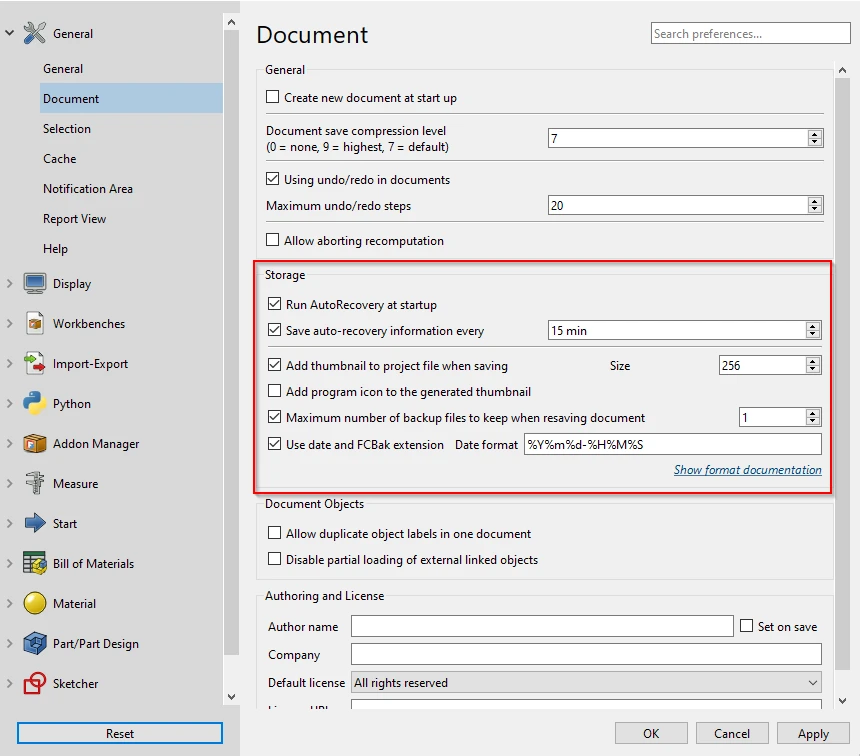
For the vast majority of projects, an auto-backup interval of every 15 to 30 minutes offers an excellent balance between data safety and system performance. This is generally frequent enough to prevent major data loss without causing constant interruptions.
For an extra layer of security, you can also create a manual backup before attempting any major, complex, or irreversible modeling operation.
I hope this breakdown helps you find the right balance for your workflow. If you’d like to know how to adjust these settings, just let me know.
“Thank you for reading! If you found this article insightful and valuable, consider sharing it with your friends and followers on social media. Your share can help others discover this content too. Let’s spread knowledge together. Your support is greatly appreciated!”