
Building a custom workbench in FreeCAD allows users to create a tailored workspace that suits their individual needs and preferences. Utilizing this powerful open-source 3D modeling software, professionals can design workbenches with specific dimensions, materials, and features to optimize their workflow and efficiency. By leveraging the program’s extensive functionalities, such as parametric modeling, assembly capabilities, and constraint-based design, users can precisely customize every aspect of the workbench according to their requirements.
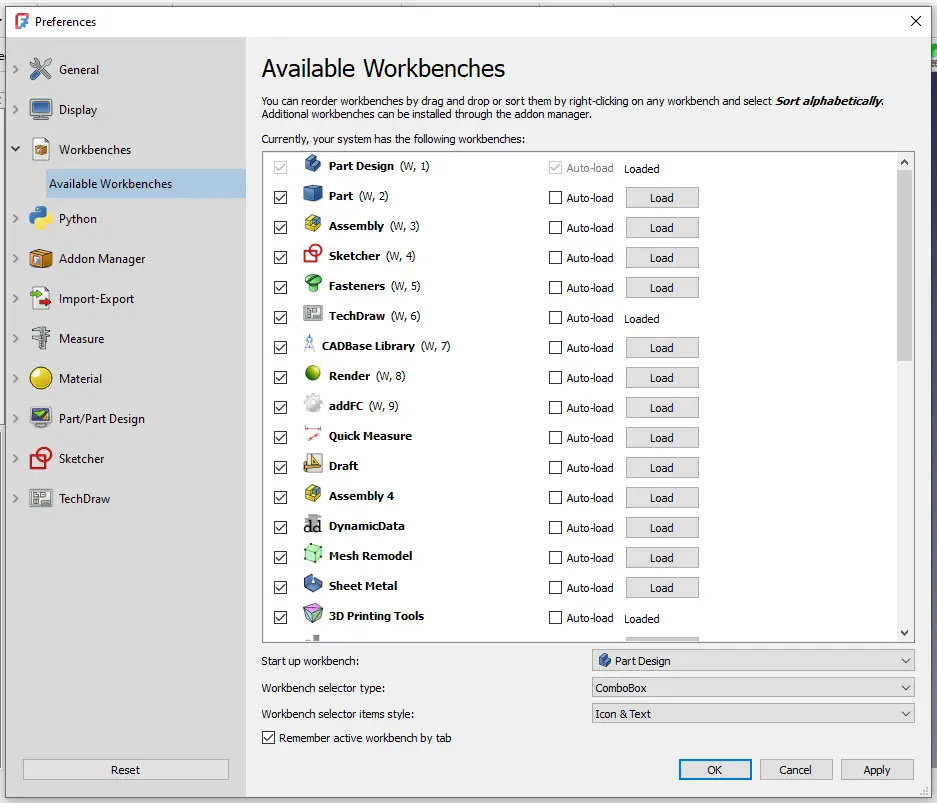
Furthermore, FreeCAD’s integrated tools for rendering and simulation enable users to visualize the final product before construction, ensuring accuracy and eliminating potential errors. With careful planning and expert utilization of FreeCAD’s tools, professionals can construct a custom workbench that maximizes productivity and enhances their overall working environment. For more advanced workflows, you can create a custom workbench. A workbench is a collection of tools and commands organized into a single interface.
Steps to Create a Workbench:-
- Create a folder for your workbench in the
Moddirectory of FreeCAD (e.g.,FreeCAD/Mod/MyWorkbench). - Add the following files:
- Init.py: Initializes the workbench.
- InitGui.py: Defines the GUI and commands.
Example: Simple Workbench
- Init.py:
class MyWorkbench: def __init__(self): import MyTools # Import your custom tools Gui.addWorkbench(MyWorkbench()) - InitGui.py:
import FreeCADGui as Gui class MyCommand: def Activated(self): import MyTools MyTools.create_sphere(5) # Example command def GetResources(self): return { "Pixmap": "MyIcon", # Path to an icon "MenuText": "Create Sphere", "ToolTip": "Creates a sphere with a radius of 5 mm" } Gui.addCommand("MyCommand", MyCommand()) - MyTools.py:
import FreeCAD as App import Part def create_sphere(radius): sphere = Part.makeSphere(radius) Part.show(sphere) App.ActiveDocument.recompute() - Restart FreeCAD, and your custom workbench will appear in the workbench dropdown.
“Thank you for reading! If you found this article insightful and valuable, consider sharing it with your friends and followers on social media. Your share can help others discover this content too. Let’s spread knowledge together. Your support is greatly appreciated!”

 My FreeCAD Projects, Models & Drawings now on Payhip