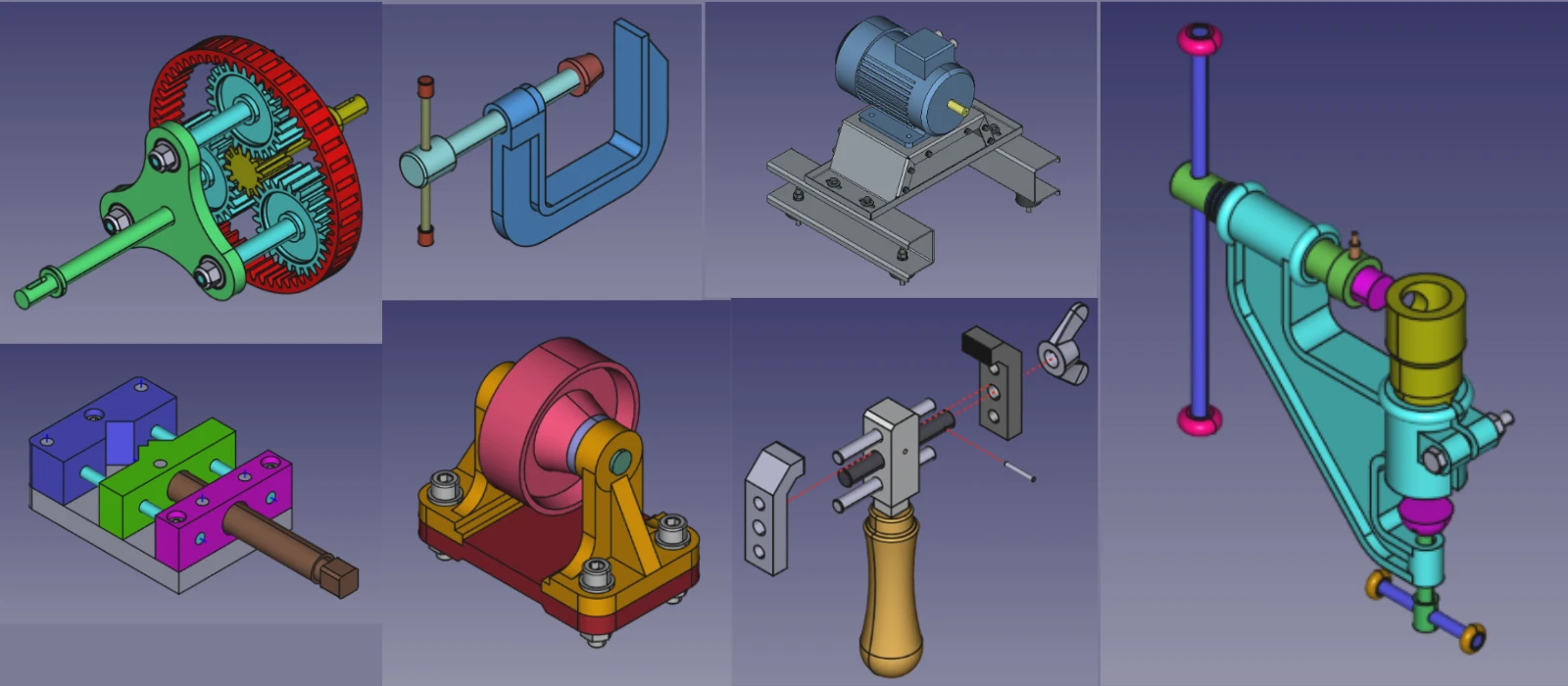
FreeCAD may crash when opening or saving files due to a variety of reasons, including software bugs, system resource limitations, corrupted files, or hardware issues. One common cause is inadequate memory or CPU resources available on the computer running FreeCAD, leading to crashes when attempting to load or save complex files. Additionally, outdated software versions or conflicting plugins can also trigger crashes in FreeCAD.

Corrupted project files can further exacerbate this issue as the program struggles to read or write data properly. To mitigate these crashes, users are advised to regularly update their FreeCAD software and check for any available bug fixes or patches. Increasing system resources by upgrading hardware components such as RAM or CPU can also improve stability when working with large CAD projects in FreeCAD.

Possible Causes:
- Corrupted file.
- Incompatible file format.
- Issues with the file path (e.g., special characters or long paths).
Solutions:
- Check the File:
- Try opening the file in another CAD program (if possible) to verify it’s not corrupted.
- If the file is from another CAD program, ensure it’s exported in a compatible format (e.g., STEP, IGES).
- Use a Different File Path:
- Save the file to a different location with a simple path (e.g.,
C:\Projects\).
- Save the file to a different location with a simple path (e.g.,
- Recover the File:
- If the file is corrupted, try using FreeCAD’s recovery tool or open a backup file (FreeCAD automatically saves backups in the same folder as the original file).
“Thank you for reading! If you found this article insightful and valuable, consider sharing it with your friends and followers on social media. Your share can help others discover this content too. Let’s spread knowledge together. Your support is greatly appreciated!”

 My FreeCAD Projects, Models & Drawings now on Payhip