In FreeCAD, managing your project files effectively is key to a smooth workflow, and understanding the difference between the Save As and Save a Copy commands is a fundamental part of this. Both options allow you to create a new file, but they serve distinctly different purposes.
-
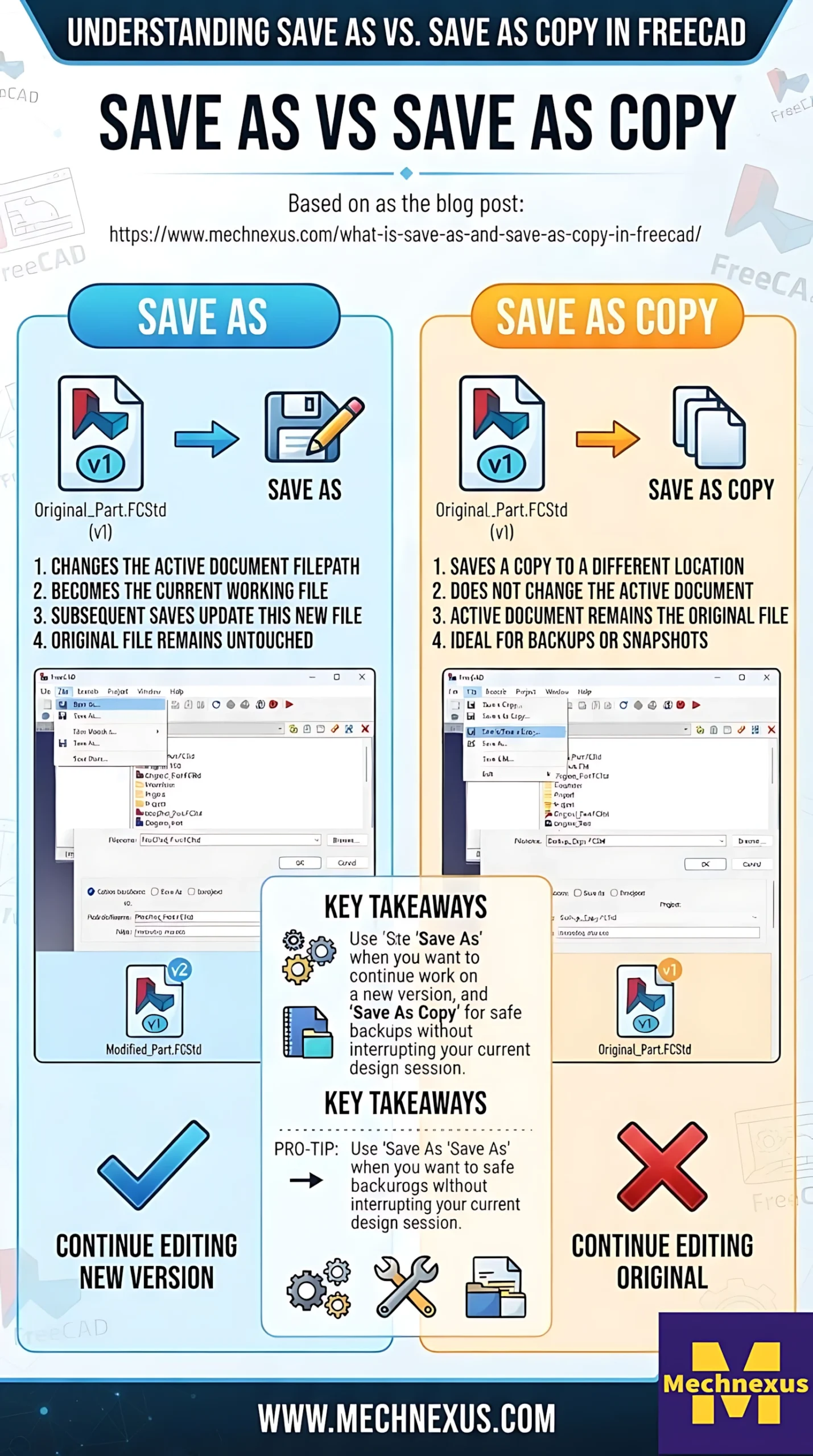
“Save As” switches you to working on a new file.
-
“Save a Copy” keeps you in your current file, leaving the copy untouched as a snapshot.
Here is a step-by-step breakdown to clarify this:
✍️ Understanding the Workflow
Imagine you start with a file named MyProject.FCStd.
1. The Save As Workflow in FreeCAD-:
The Save As command is used to save the active document under a new file name. This is a critical function because it changes the very identity of your current working document. After using “Save As,” the document you are working on is the new file, and its name will be reflected as the root in the document tree structure. This is the standard way to create a new version of your project, such as Bracket_V2.FCStd, while continuing your work in that new file.
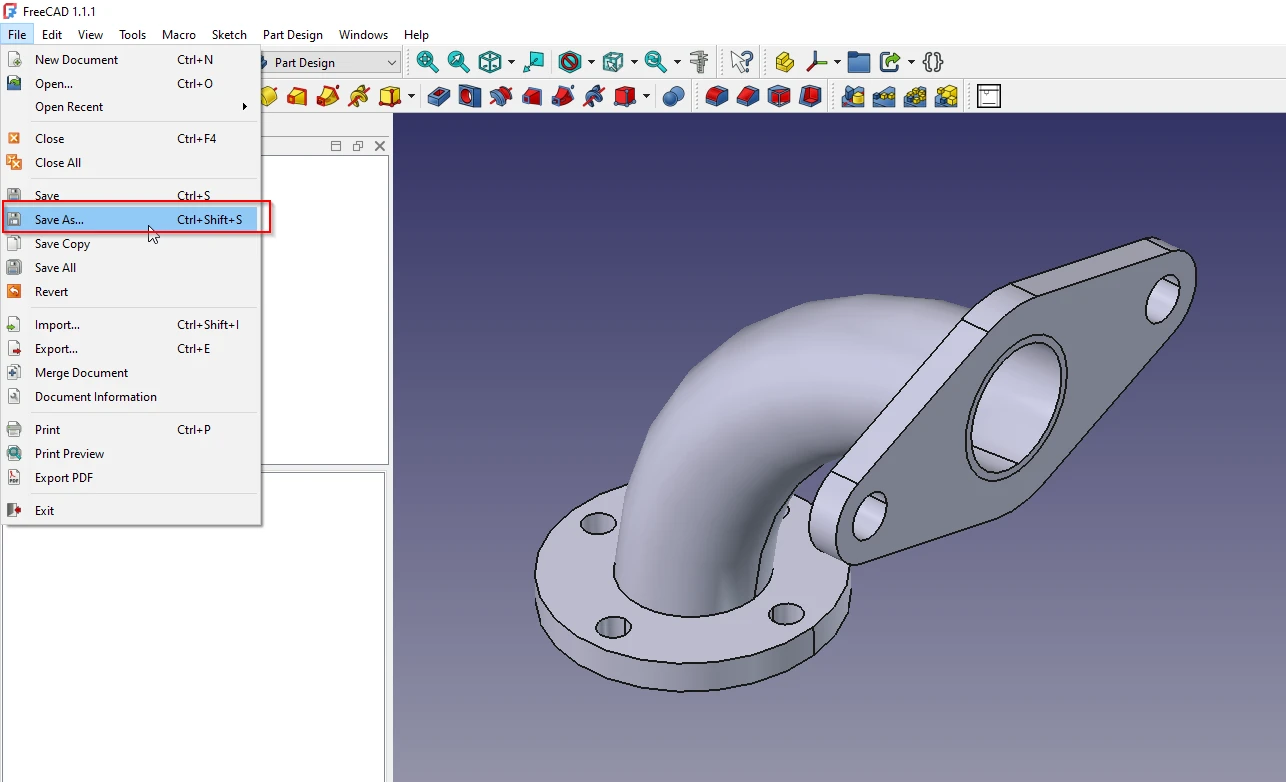
When you choose File → Save As...:
-
Save: FreeCAD saves all your latest changes to a brand new file (e.g.,
Project_V2.FCStd). -
Switch: It immediately closes
MyProject.FCStdand opensProject_V2.FCStdas your new active document. -
Result: All your subsequent work will be saved to
Project_V2.FCStd. The originalMyProject.FCStdremains on your hard drive, unchanged since your last manual save.
2. The Save a Copy Workflow in FreeCAD-:
In contrast, the Save a Copy command creates a copy of the active document under a new file name but does not change your current working document. It’s like a “snapshot” or a backup. Your current project remains open and retains its original name, such as Bracket_V1.FCStd. This is an excellent, low-risk way to create a safe backup before making major design changes, or to generate a file to share with a collaborator while you continue working on the original.
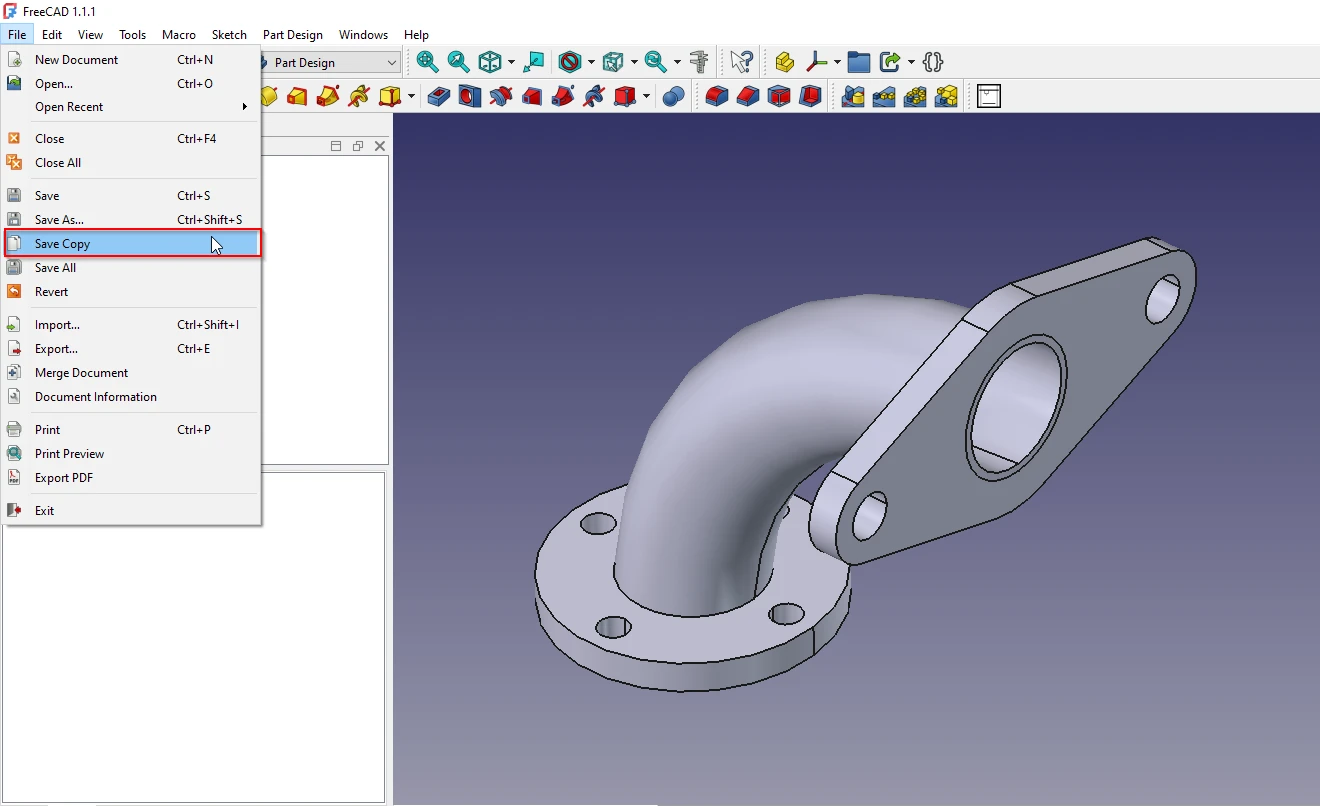
When you choose File → Save a Copy...:
-
Save: FreeCAD creates a snapshot of your current work as a separate file (e.g.,
Project_Backup.FCStd). -
Stay: You are not switched to the new file. Your active document remains
MyProject.FCStd. -
Result: You continue working in the original file. The new file is simply a saved duplicate.
⚖️Save As vs. Save a Copy at a Glance
| Feature | Save As... |
Save a Copy... |
|---|---|---|
| Primary Goal | To create and continue work on a new version of a file. | To create a backup or a snapshot of the current state. |
| Active Document | Changes to the new file. You will be working in the copy. | Remains the current file. You keep working in the original. |
| File Location | The copy is saved in a location you choose. | The copy is saved in a location you choose. |
| Best For | Milestones, branching designs, or working on a new iteration. | Quick backups, sending a snapshot to a colleague, or testing an idea. |
📋 Specific Outcomes for FreeCAD
-
When to use
Save As: You’ve reached a major milestone (e.g., “Final Design”) and want to start a new iteration. This lets you keep your version history clean by working forward in a new file. -
When to use
Save a Copy: You’re about to try a risky operation (like a complex fillet or a boolean cut) and want a quick, safe backup without interrupting your current workflow. You can also use it to export a simplified version of your model for a client or for 3D printing.
“Thank you for reading! If you found this article insightful and valuable, consider sharing it with your friends and followers on social media. Your share can help others discover this content too. Let’s spread knowledge together. Your support is greatly appreciated!”
 My FreeCAD Projects,Model & Drawing now on Gumroad