Hello friends welcome to FreeCAD tutorial and in this tutorial we will learn how to insert the surface roughness symbol in a FreeCAD drawing. I will use SVG method to insert surface roughness symbol which is most robust method because if inbuilt method does not work then this method will always work because you can find Free SVG symbol over internet or create your own either with old surface finish symbol which is triangle method or new new ISO method.
⚠️ Important Note on Standards: The built-in TechDraw tool has some known limitations. It currently uses the older ISO 1302 standard instead of the newer ISO 21920 standard, and the options for customizing roughness values (e.g., entering Rz or Rt instead of just Ra) are limited. If you need full compliance with the latest standards or advanced customization, Method 2 might be more suitable.
Also Read-:
- Measure Area, Volume & Center of Mass with Python Script
- Visit My FreeCAD Video Tutorial Library
- Import Existing FreeCAD Setting on Fresh FreeCAD Installation
Using a Custom SVG Symbol (Workaround)-:
As you can see that in a Techdraw Workbench there is a not very straightforward way to add the surface roughness symbol like a software like SolidWorks. but in FreeCAD there are some different way to do this so we will learn how we can do it so first you have to search for the SVG symbol on Google so here I wanted to use the Ra 3.2 for my part.
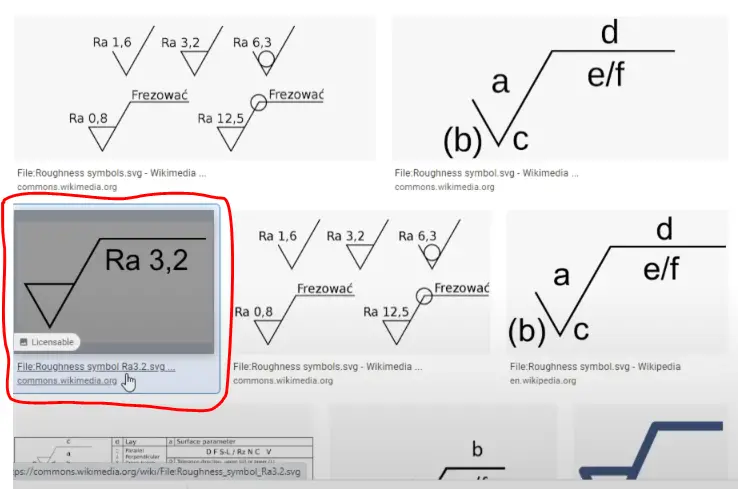
it is a SVG file of RA 3.2 which is from the Wikimedia so it is a free and open source so you can use it save this image if you want to make changes to SVG file you can use inscape software. Techdraw workbench you will see a option called insert SVG symbol.
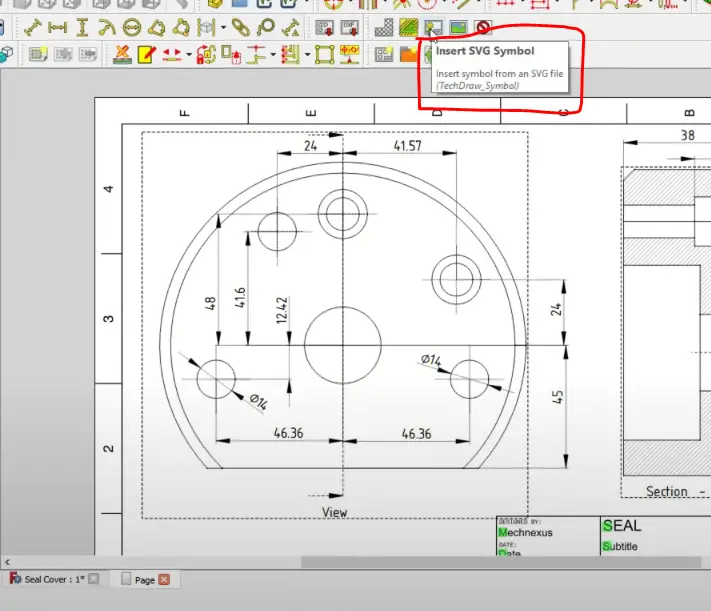
I given the path to my saved SVG file and you can see that Ra 3.2 so it got inserted so if you want to move it just on the frame and move it as size is big so I will select the frame and give it proper size.
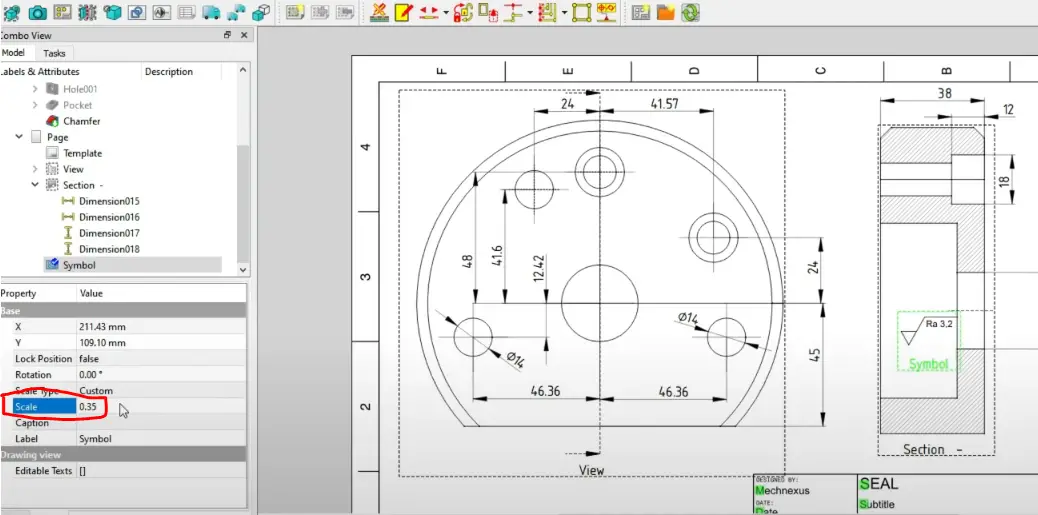
Now I wanted to attach to this surface so I will drag it and attach to this surface. if you want to rotate the symbol and provide he angle.
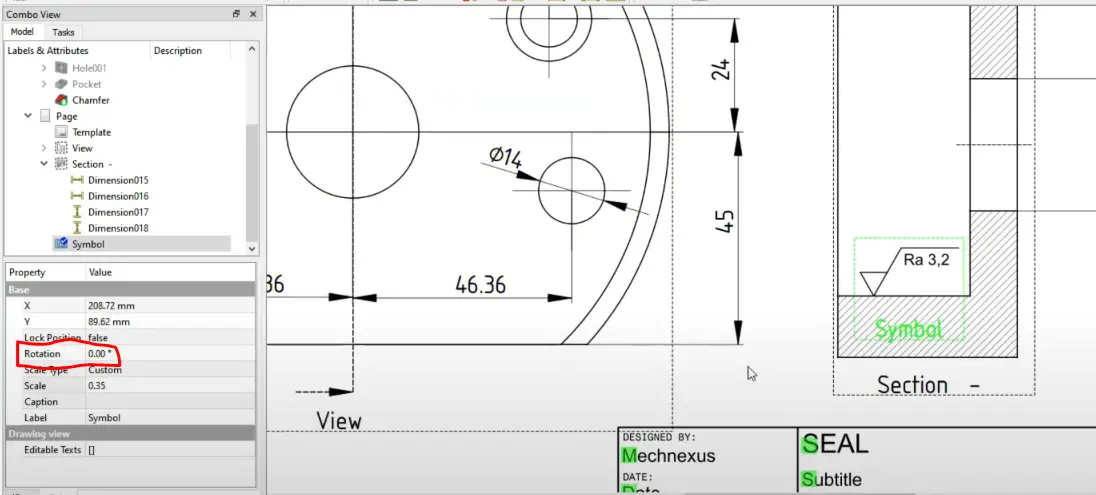
This SVG method provides more flexibility but requires a bit more manual work to set up.
“Thank you for reading! If you found this article insightful and valuable, consider sharing it with your friends and followers on social media. Your share can help others discover this content too. Let’s spread knowledge together. Your support is greatly appreciated!”
Watch Video Version of this Tutorial-: