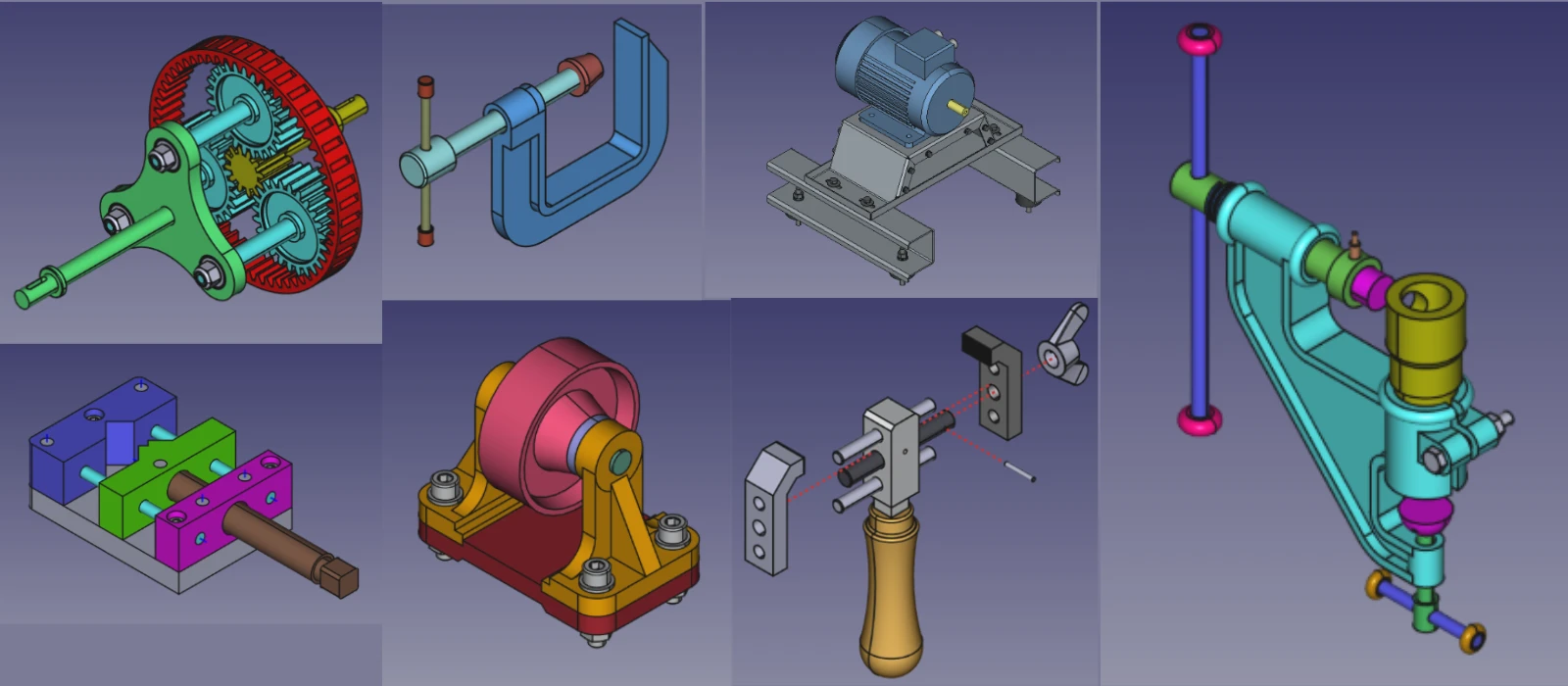
The key to a faster FreeCAD assembly lies in two core strategies: using lighter constraints and building a more efficient assembly structure. Avoiding the use of computationally expensive joints, like multiple “Distance” constraints, is crucial. Instead, you can significantly reduce solver load by using a single “Fixed” constraint to lock a part in place. Additionally, organizing your design into sub-assemblies can make a huge difference, as it isolates groups of parts and reduces the total calculations required for the entire model.
You can further improve responsiveness by adjusting your workflow and settings. For example, you can temporarily “suppress” parts you aren’t working on to remove them from the solver’s calculations. Other helpful adjustments include disabling view animations or software OpenGL rendering, which can free up your GPU for more demanding tasks.
⚙️ 1. Optimize 3D View & Rendering-:
Your graphics settings have a major impact on how smoothly you can navigate your assembly.
-
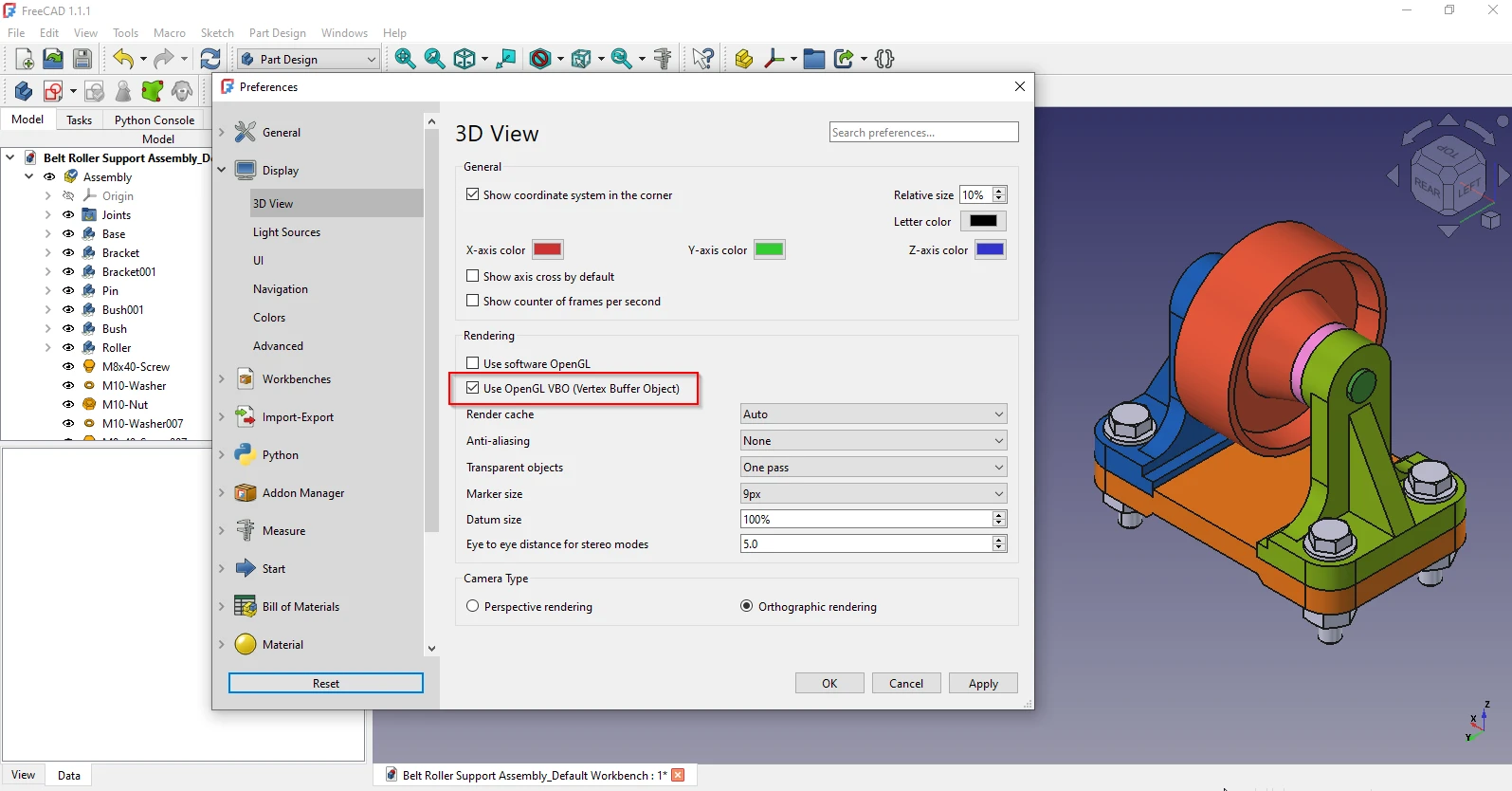
Enable VBO (Vertex Buffer Object): This offloads rendering tasks from your CPU to your GPU, leading to a smoother viewport. You can find this in
Edit → Preferences → Display → 3D View, by checking the “Use VBO (Vertex Buffer Object)” box.
-
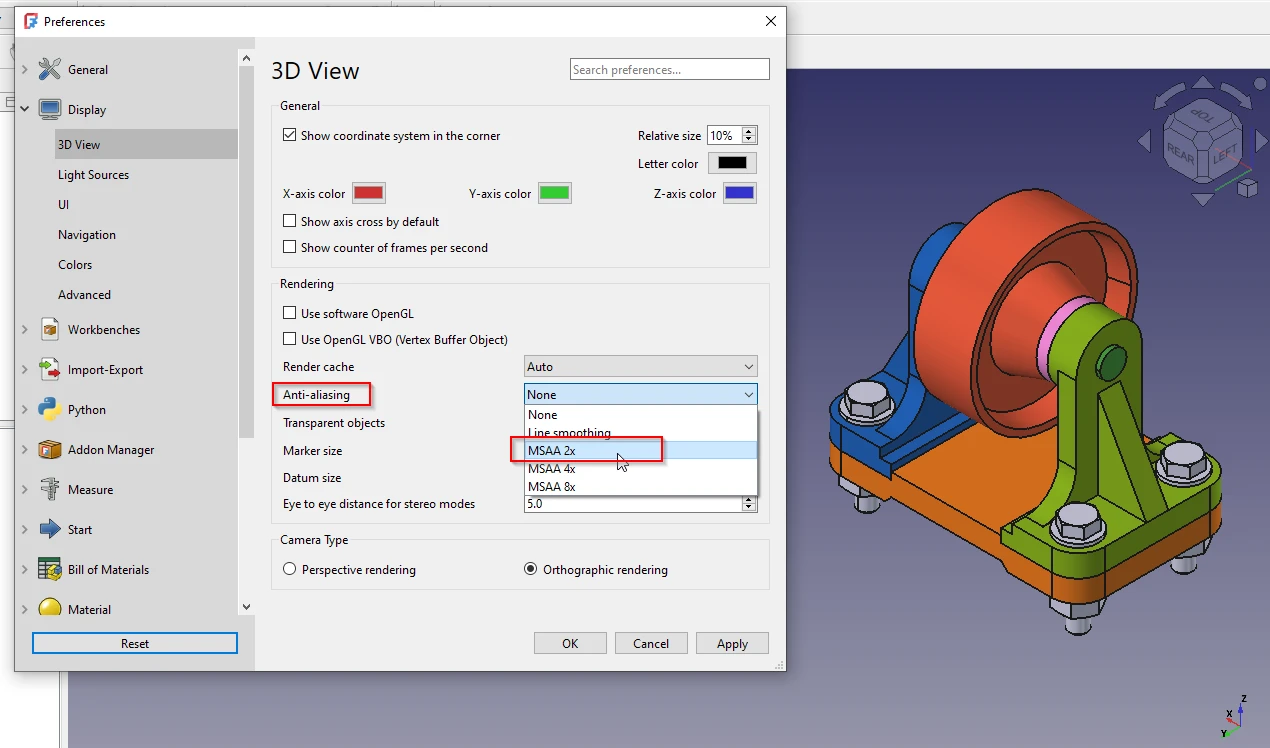
Fine-Tune Anti-Aliasing: While anti-aliasing smooths out jagged edges, it is a demanding feature. If you’re experiencing lag, consider disabling it temporarily (
View → Anti-aliasing) or switching to a lower setting like MSAA 2x.
🧩 2. Manage Assembly Data-:
How you structure your assembly data is crucial for keeping your file size and computation manageable.
-
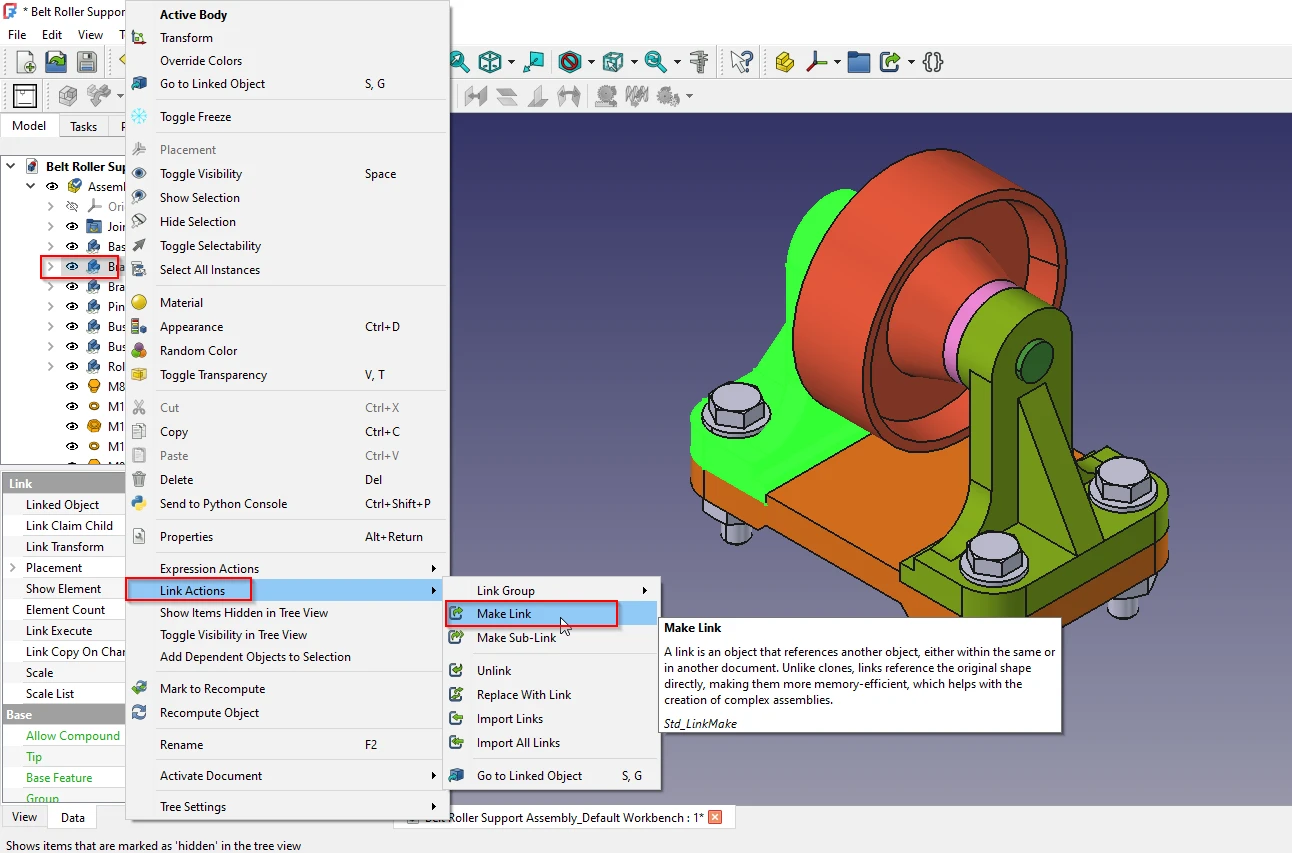
Use Links, Not Copies (
App::Link): This is arguably the most important tip. Instead of copy-pasting a part, use the “Create Link” tool. A link is a lightweight reference that doesn’t duplicate geometry. This can reduce memory usage by over 80%. For an assembly of 300+ parts, memory usage can drop from 4.2 GB to just 890 MB.
-
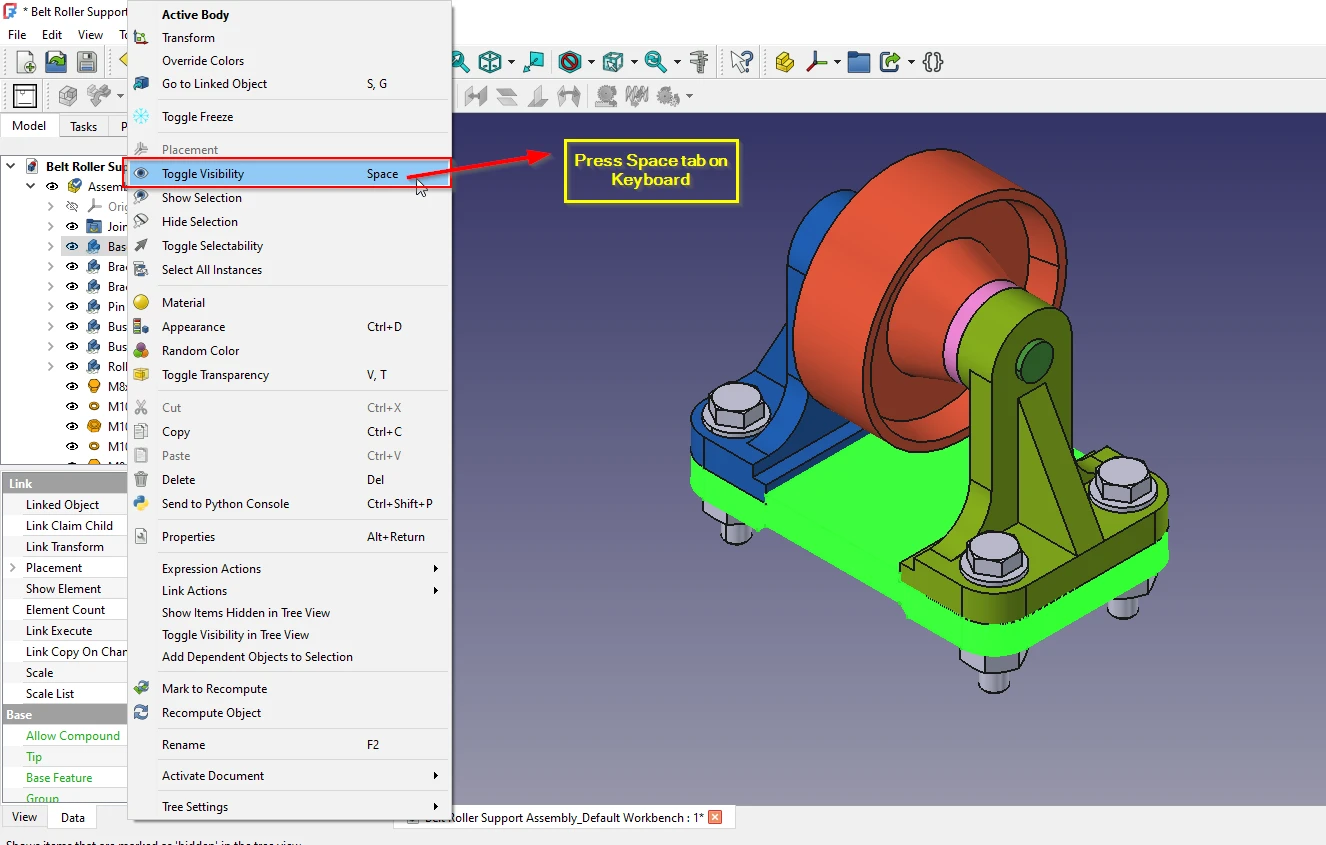
Hide Unnecessary Parts: Keep your assembly tidy by hiding components you are not actively working on. Use the Spacebar on a part in the Tree View to toggle its visibility. This prevents FreeCAD from rendering those parts, which saves computational resources.
-
Simplify Complex Parts: If you have a part with extremely complex geometry, consider creating a simplified “proxy” version of it. Using
Part → Create Shape from Meshor rebuilding a part with fewer features to use in the top-level assembly can help.
⚡ 3. Adjust Workflow & Solver Settings-:
The Assembly workbench’s solver can sometimes be a source of slowdown, but a few workflow tweaks can help.
-
Use “Fixed” Joints Strategically: Grounding parts that shouldn’t move reduces the number of degrees of freedom the solver has to calculate for. This is done by selecting the part and pressing the G key.
-
Recompute Frequently: The solver can slow down if it has to resolve too many changes at once. It’s good practice to manually trigger a recompute after adding a few joints (
Right-clickon the Assembly in the Tree →Mark to Recompute, then press F5)–. -
Start Fresh for New Projects: For performance and stability in complex projects, starting a new design with FreeCAD’s latest official version is highly recommended, as the assembly workbench is under continuous development.
“Thank you for reading! If you found this article insightful and valuable, consider sharing it with your friends and followers on social media. Your share can help others discover this content too. Let’s spread knowledge together. Your support is greatly appreciated!”
 My FreeCAD Projects,Model & Drawing now on Gumroad