🎯 1. Enabling Center Marks for a Specific View (The Most Common Method)
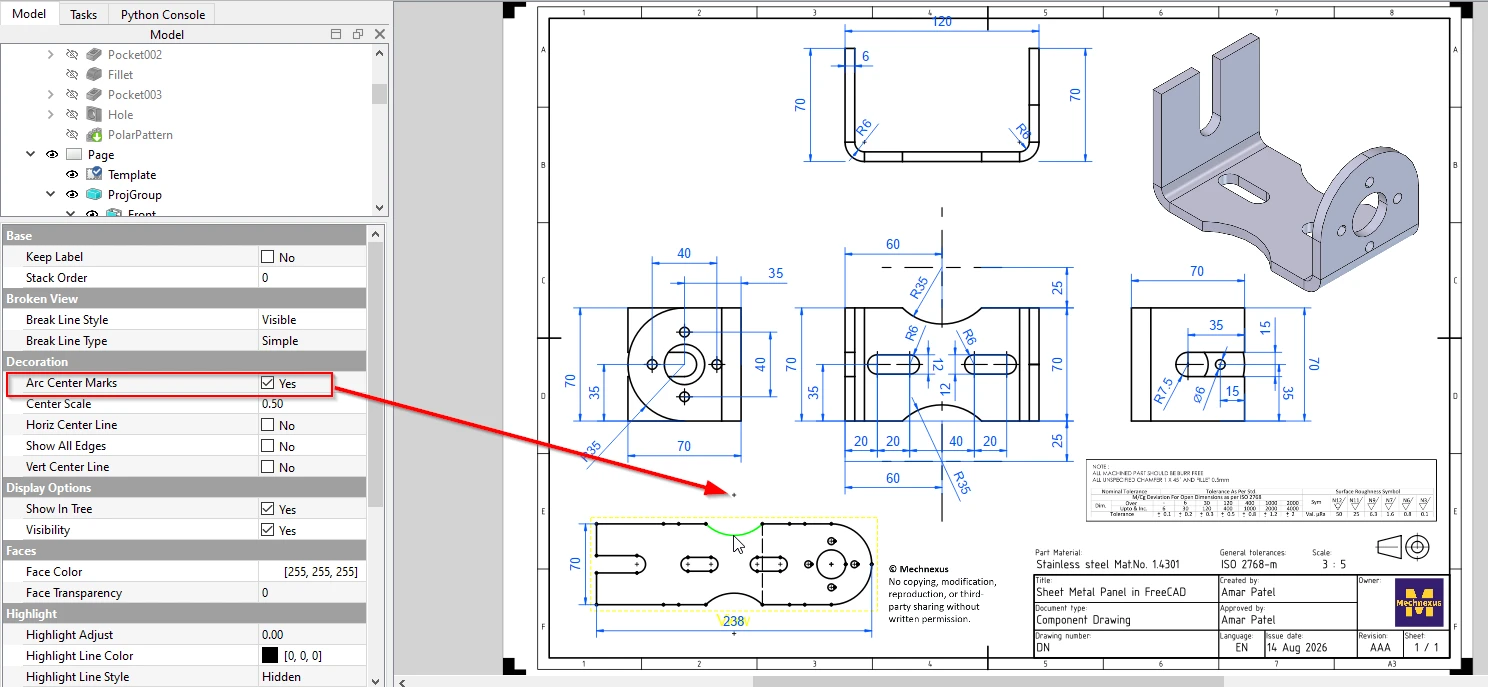
This method turns on center marks for a single drawing view, like “Front” or “Top”.
-
In the Model tree, select the drawing view you want to add center marks to (for example,
Front). -
Go to the Property panel below the tree.
-
Click on the View tab (this is important – it’s not the Data tab).
-
Find the property called Arc Center Marks and set its value to
true.
This will display a small cross at the center of every circular arc and hole in that specific view––.
Why this is important: Without these center marks, you won’t be able to place dimensions on holes or other circular features. TechDraw simply won’t let you select the center point for dimensioning–.
⚙️ 2. Global Auto‑Center Mark Setting (Preference for All New Views)
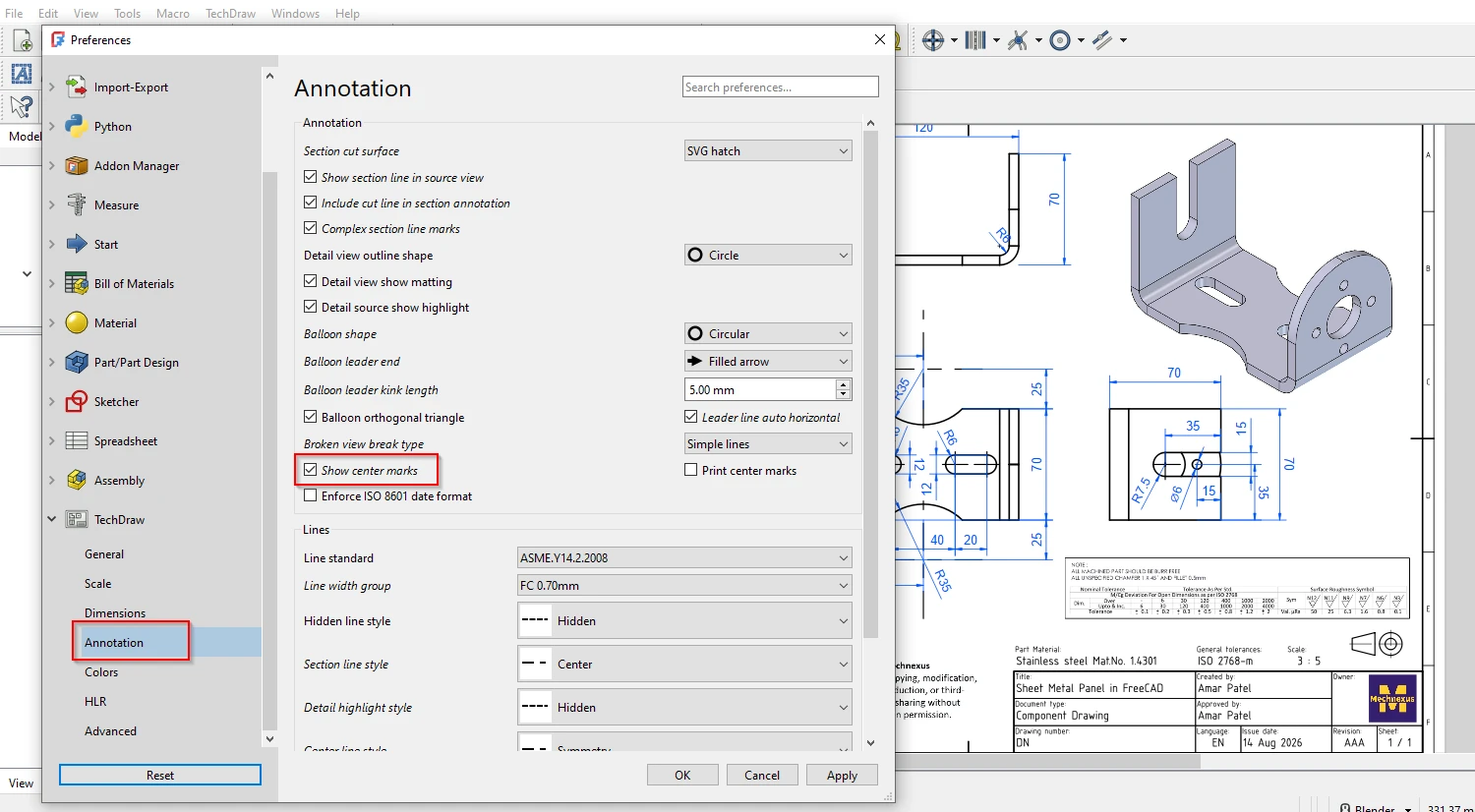
If you want all future drawing views to have center marks enabled by default, you can change a global preference.
-
Go to Edit → Preferences.
-
In the left panel, select TechDraw.
-
Click on the Annotation tab.
-
Check the box labeled Show Center Marks–.
After this, any new view you insert onto a drawing page will have Arc Center Marks automatically set to true. Please note, this setting only affects new views – you’ll still need to manually enable the property for any existing views.
💎 Summary
-
To quickly enable marks for a single view: Set
Arc Center Markstotruein that view’s View properties. -
To have marks on by default for all new views: Enable Show Center Marks in TechDraw Preferences → Annotation.
I hope this helps you get the center marks you need for your drawings! If you have any other questions about TechDraw, feel free to ask.
“Thank you for reading! If you found this article insightful and valuable, consider sharing it with your friends and followers on social media. Your share can help others discover this content too. Let’s spread knowledge together. Your support is greatly appreciated!”
 My FreeCAD Projects,Model & Drawing now on Gumroad