Hello friends welcome to FreeCAD tutorial in our previous tutorial we have learned how to Create HTML Assembly Hierarchy Structure in FreeCAD. In this tutorial we will learn how to set default workbench in FreeCAD. You can set your preferred default workbench through the Preferences menu. This allows FreeCAD to load your preferred workbench when you start FreeCAD.
Workbench Purpose in FreeCAD-:
In FreeCAD, a Workbench is a set of tools grouped together for a specific task, similar to having different workstations in a physical workshop. For example, you might use the Draft Workbench to draw 2D shapes, then switch to the Part Workbench to turn those shapes into 3D objects.
The key thing to remember is that when you switch workbenches, only the interface tools change; the actual objects you are working on in your document stay exactly the same.
In this tutorial, we will explore the importance of setting a default workbench in FreeCAD and how it can enhance your design workflow. FreeCAD is a powerful open-source 3D modeling software that allows you to create detailed and precise designs for various projects. By setting a default workbench, you can customize your workspace to suit your specific needs and streamline your design process.
Also Read-:
- Importance of Networking for Mechanical Engineers
- 5 Soft Skills Every Successful Mechanical Engineer Needs
- Career Paths You Didn’t Know Existed for Mechanical Engineers
Whether you are a beginner or an experienced user, understanding how to set the default workbench is crucial for seamless design. So, let’s dive in and learn how to master FreeCAD by setting your default workbench!
📚 Built-in Workbenches in FreeCAD-:
FreeCAD comes with a wide selection of workbenches already installed. As of recent versions, the most commonly used ones are enabled by default are as follows:
-
Part Design: The primary workbench for creating solid 3D models by building them from 2D sketches.
-
Sketcher: Used to create constrained 2D geometry, which is the foundation for Part Design models.
-
Part: Provides tools for working with geometric primitives (boxes, cylinders) and performing Boolean operations.
-
Draft: Contains 2D drafting tools and basic 3D operations.
-
TechDraw: For generating professional technical drawings from your 3D models.
-
BIM: For architectural design and Building Information Modeling.
-
CAM: Used to produce G-Code for CNC machining.
-
FEM: Provides a workflow for Finite Element Analysis.
In newer versions (like 1.1 and later), some less commonly used workbenches such as Inspection, OpenSCAD, Robot, and Test Framework are disabled by default but can be turned on in the preferences.
🧩 External Workbenches in FreeCAD-:
Because FreeCAD is highly extensible via Python, the community has developed many External Workbenches for specialized tasks. You can easily install these using the built-in Add-on Manager found under the Tools menu.
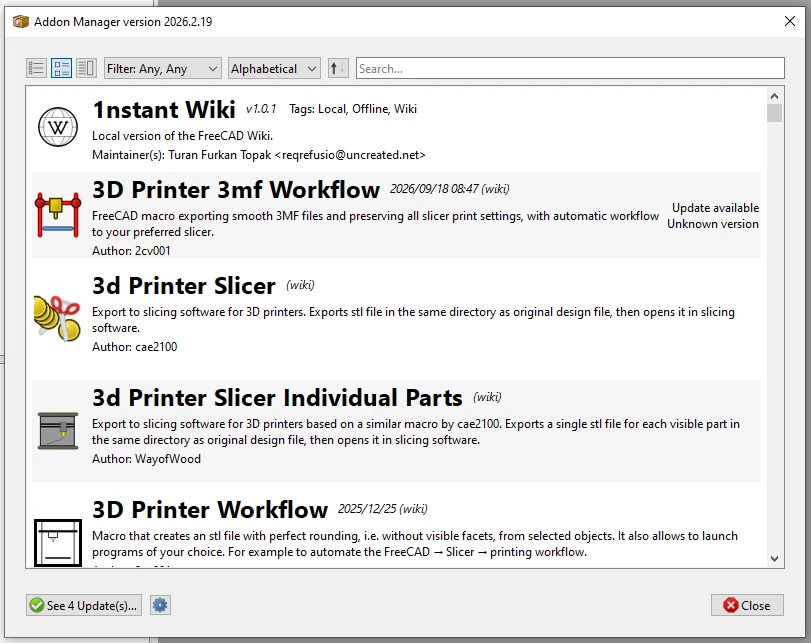
Examples include workbenches for sheet metal design, shipbuilding, or woodworking.
Also Read-:
- Master FreeCAD: Top Free Learning Resources to Enhance Your Skills
- Automate FreeCAD with Python Scripting. Make Custom Tools and Workflows
- Exploring the Future of FreeCAD: Innovations and Trends to Watch
⚙️ How to Change the Default Workbench (Older Version)-:
Here is the step-by-step process to set your preferred default workbench:
-
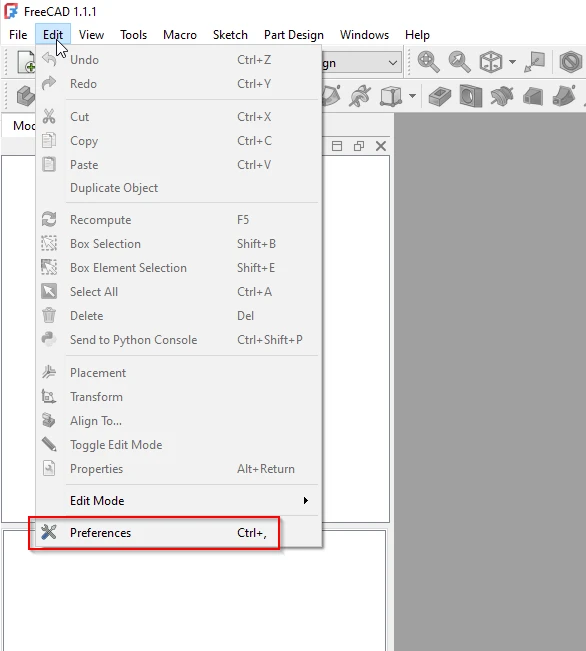
Open the Preferences menu: Go to Edit → Preferences from the top menu bar.
-
Navigate to the General settings: In the left panel of the Preferences dialog, select the first tab, which is “General”.
-
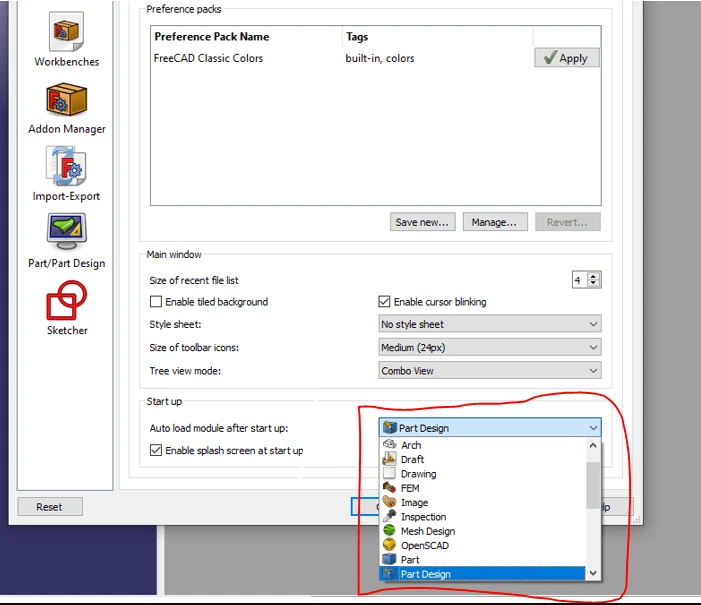
Find the Startup section: Look for the setting that controls the behavior when FreeCAD starts.
-
Set your default workbench: Use the “Startup Workbench” dropdown menu. Select your preferred workbench (e.g., Part Design, Draft, Sketcher) from the list.
-
Apply the changes: Click “OK” to save your settings and close the dialog.
⚙️ How to Change the Default Workbench (1.x Version)-:
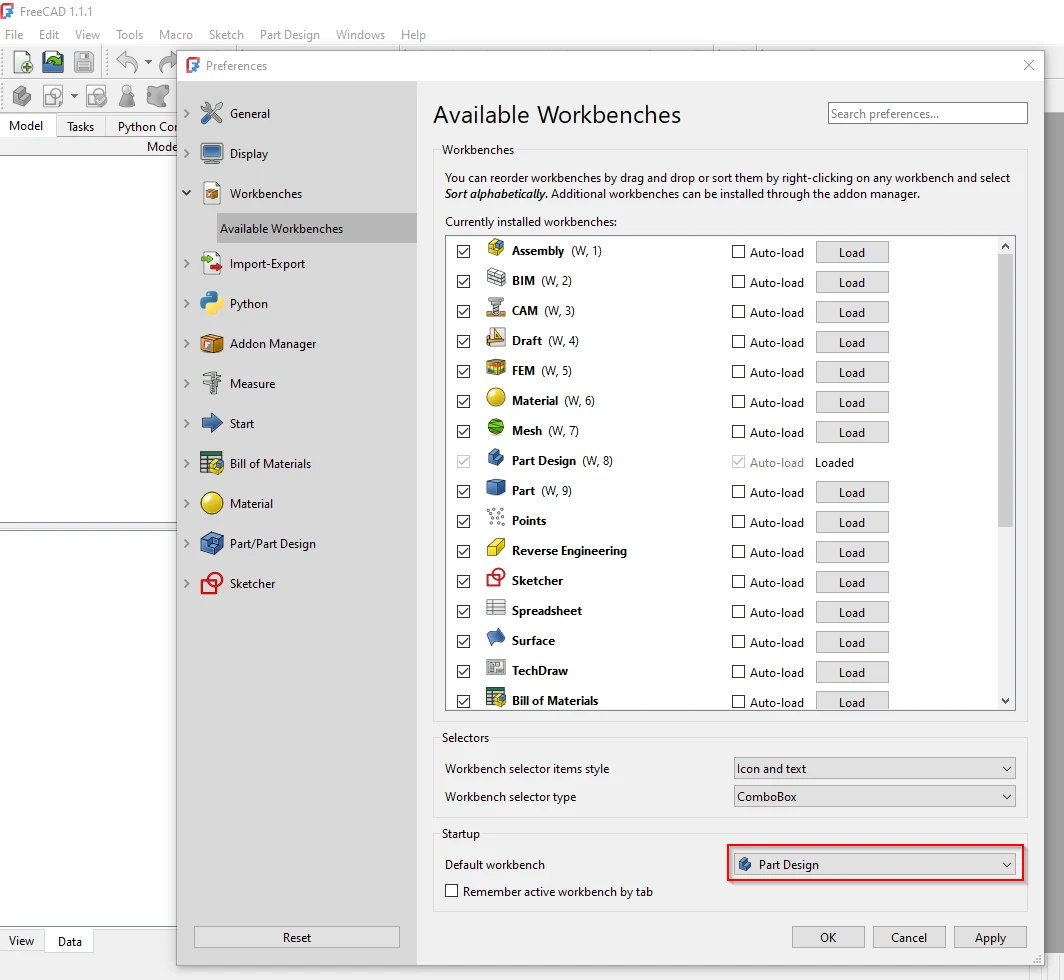
Depending on your FreeCAD version, the setting might be located under a different section if you are using Newer Versions (FreeCAD 1.x): The setting is located under Workbenches → Available Workbenches As shown in below image.
“Thank you for reading! If you found this article insightful and valuable, consider sharing it with your friends and followers on social media. Your share can help others discover this content too. Let’s spread knowledge together. Your support is greatly appreciated!”